
Campaigns
A campaign is how you send a message to one or more groups of contacts in Flexmail. Campaigns are the core of your email marketing activity, they handle your audience selection, sending schedule, tracking configuration, and reporting, all in one flow.
Flexmail has four campaign types: email, opt-in, SMS, and test. This article walks through what each type does and how to create them.
Prerequisites
- You have at least one validated sender address in Settings > Add or remove senders.
- You have a message ready to send. Create one under Messages before creating an email campaign.
- You have your contact list or a segment set up to use as recipients.
- For SMS campaigns: you need SMS credits and contacts with valid mobile numbers.
- For opt-in campaigns: your message must contain an #opt-in# placeholder link.
The four campaign types
Email campaign
The standard campaign type you'll use most often. Send a message to one or more segments, interests, or preference lists, suitable for newsletters, promotions, product updates, and any other marketing email.
Opt-in campaign
Used to re-confirm consent from your existing contacts. When you send an opt-in campaign, all recipients are immediately set to inactive. Contacts who click the confirmation link in your email become active again. Contacts who don't are moved to unconfirmed status after 14 days and can no longer receive campaigns.
Attention Use opt-in campaigns deliberately. Because all recipients are set to inactive at the moment of sending, this campaign type can significantly reduce your sendable list if response rates are low.
SMS campaign
Send a text message to contacts who have a valid mobile number stored in their profile. SMS campaigns are not included in standard subscriptions, contact sales@flexmail.be for more information. Messages can be 140, 268, or 402 characters long, costing 1, 2, or 3 SMS credits per contact respectively.
Test campaign
Send a campaign to a small internal test list before sending to your real audience. Results appear as a sub-entry beneath the related campaign. You can create as many test campaigns as you need at no extra cost.
Support tip Always send a test campaign before your final send, even for templates you've used before. Email clients update frequently, and a layout that looked perfect last month may behave differently today.
Create an email campaign
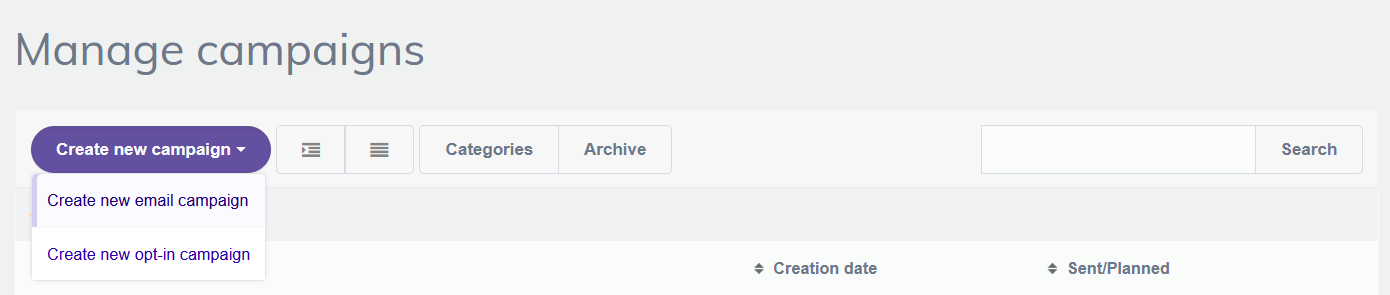
Go to Campaigns, then Manage campaigns, and click Create new campaign > Create new email campaign.
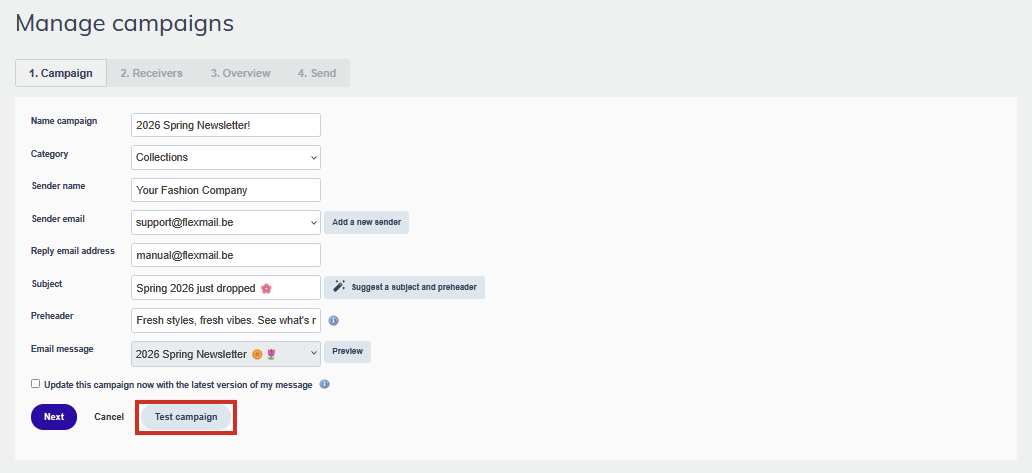
Step 1: Campaign details
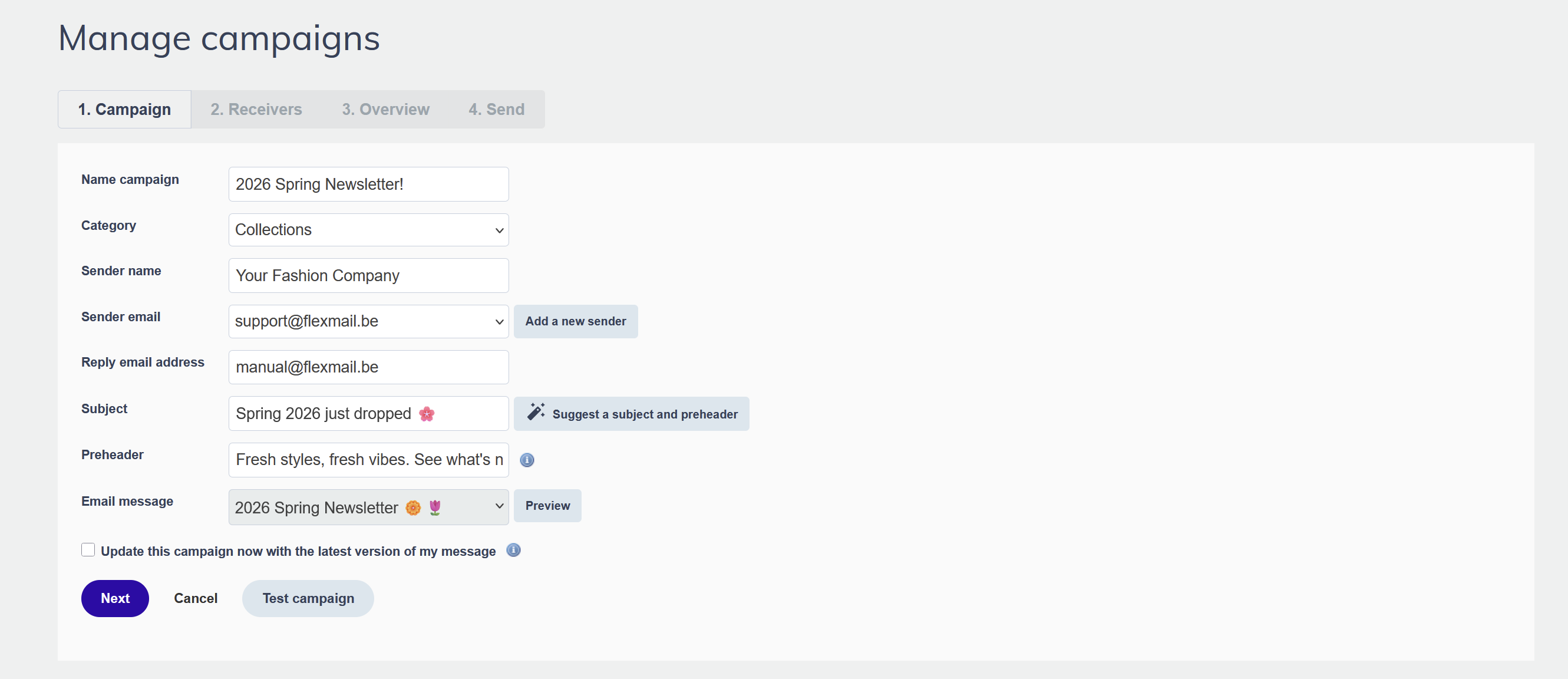
- Enter a campaign name and choose a category to keep your account organised.
- Enter a subject line.
- Select a validated sender address. If the address you want isn't listed, add it first under Settings > Add or remove senders.
- Enter a sender name, this is what contacts see in their inbox before opening your email.
- Optionally, change the reply-to address if you want replies to go to a different inbox than your sending address.
- Select the message you want to send.
- If you might still edit the message before sending, check "Update this campaign with the latest version of my message".
Support tip You can use a dynamic sender address: Flexmail checks the chosen custom field for each contact and sends from the corresponding validated email address. Useful if different team members should appear as the sender for their own contacts.
Step 2: Select your recipients
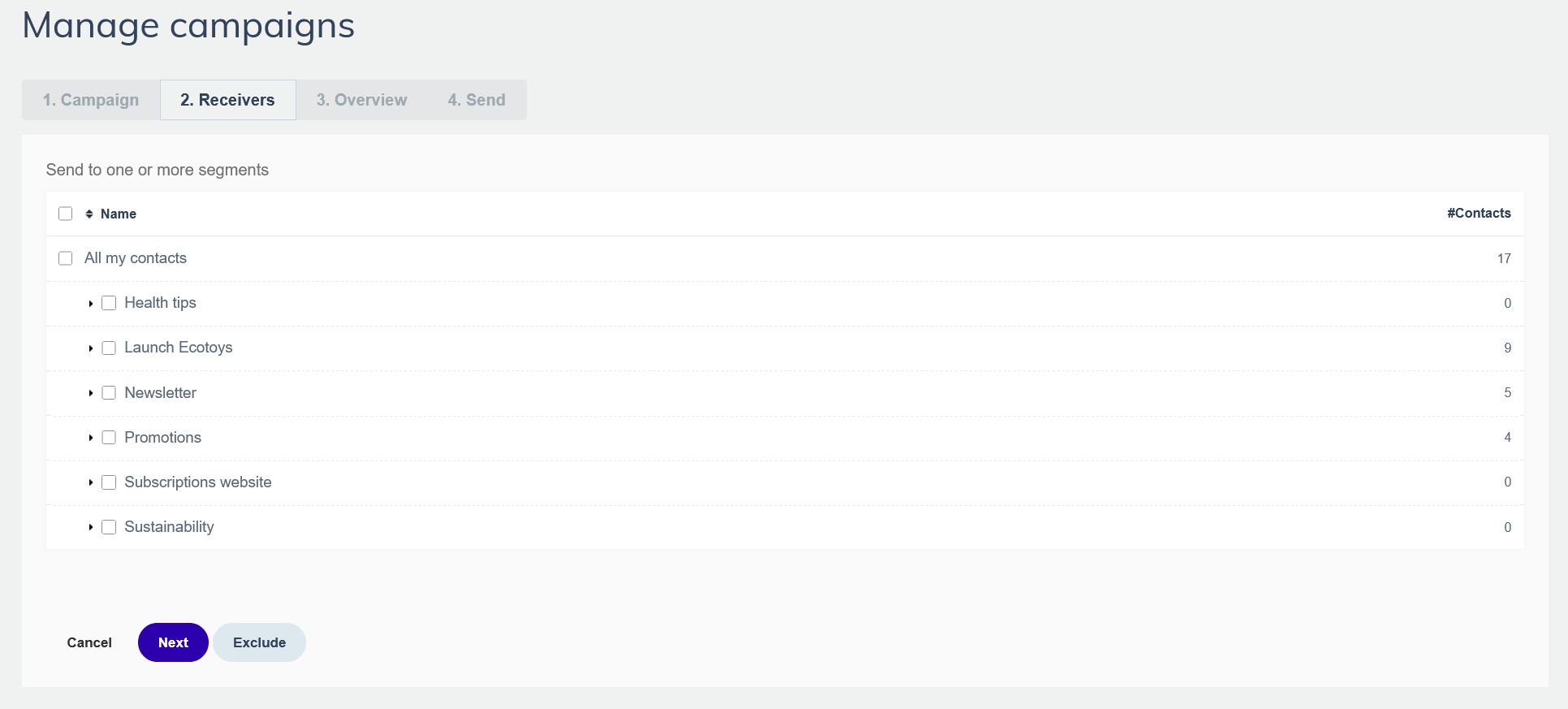
Choose which segments will receive the campaign. You can also exclude specific segments; contacts present in excluded segment won't receive the campaign even if they also belong to an included one. If a contact belongs to multiple selected segments, they'll only receive the campaign once.
Step 3: Review the overview
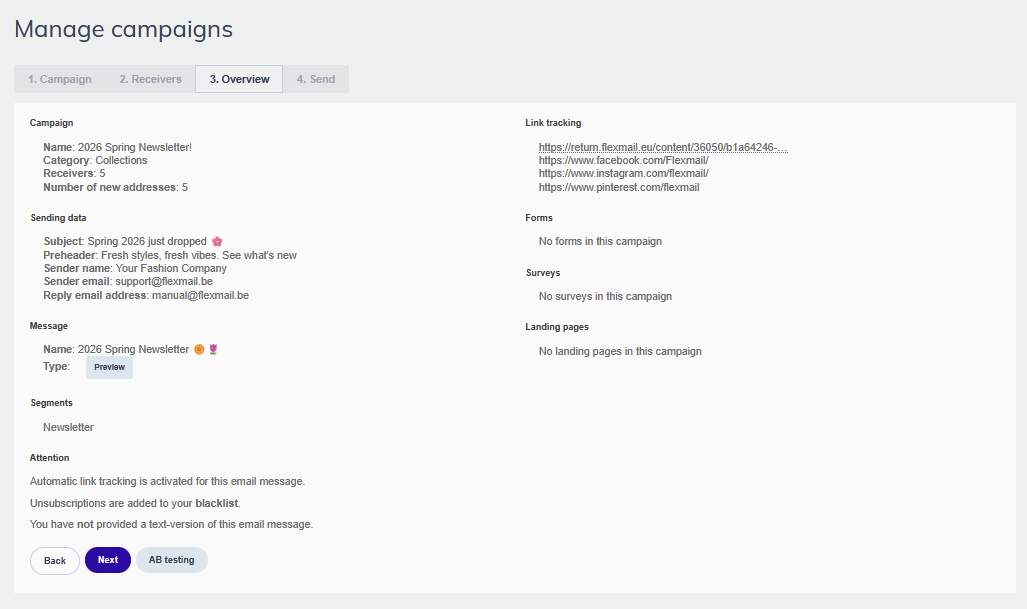
Before confirming your sending options, review everything on the overview page. You'll see your blacklist settings, link tracking configuration, and any forms, surveys, or landing pages linked to your message. Check that a text version of your message is present, email clients that don't load HTML will display this, and it also improves deliverability. This is also where you can add an AB test before proceeding.
Step 4: Choose your sending option
Choose when and how your campaign goes out: save without sending, send now, send at a scheduled time, or send in batches. You can also add notification email addresses to receive a confirmation once your campaign has finished sending.
Attention Do not remove contacts from your database while a campaign is still sending. This will cause inaccurate results in your campaign report.
Create an opt-in campaign
Go to Campaigns, then Manage campaigns, and click Create new campaign > Create new opt-in campaign. The setup is the same as an email campaign, with one important difference: the message you select must contain an #opt-in# placeholder link. This is what contacts click to re-confirm their subscription. Batch sending is not available for opt-in campaigns.
Create an SMS campaign
- Go to Campaigns, then Manage campaigns, and click Create new campaign > Create new SMS campaign.
- Enter a campaign name and category.
- Write your SMS message. A character counter shows how many credits the message will cost per contact.
- Select recipient segments. Contacts without a valid mobile number will not receive the message.
- Review the overview and send.
Create a test campaign
Start a test campaign from the same flow as a regular email campaign. On step 1, click the Test campaign button. Select only your internal test segment as the recipient, then send. After sending the test, the original campaign status updates to ready so you can proceed without re-entering your settings.
Pro tips
- Use categories to organise your campaigns from the start. Once you have dozens of campaigns, filtering by category is much faster than scrolling through a list.
- Prepare your test segment before you need it, a small group of internal addresses covering Gmail, Outlook, and at least one mobile device. Reuse it for every campaign.
- Set up notification emails on campaigns you hand off to colleagues. They'll know the moment the campaign finishes sending without having to check in Flexmail.
Common mistakes to avoid
- Sending without a text version. Without a text version, devices which can't load HTML see nothing. The overview page will warn you if one is missing.
- Using a sender address that hasn't been validated. Unvalidated addresses can't be selected in the campaign flow. Validate them in advance under Settings > Add or remove senders.
- Selecting the wrong segments in step 2. Double-check your recipient count on the overview page before proceeding, it should match your expectations.
- Leaving the "Update this campaign with the latest version of my message" box unchecked when you're still editing the message. If you make changes after creating the campaign and this box isn't checked, your contacts will receive the old version.
GDPR considerations
GDPR Only send campaigns to contacts who have given valid consent to receive your communications. Opt-in campaigns are a tool for re-confirming that consent when you're unsure, but the better approach is to maintain clean consent records from the start. Each campaign you send should be relevant to the segment receiving it. Sending irrelevant emails damages deliverability and risks spam complaints, which in turn affects your ability to reach engaged contacts.
Next steps
- Send a test campaign first, see "Why send a test campaign" for a full checklist.
- Set up AB testing to improve your subject lines and content over time.
- Review your campaign results in Campaigns > Campaign reports after sending.
- Use the relaunch feature to send the same campaign to new contacts added after the original send.