
Alt Texts
Alt text is the description that appears in place of an image when the image cannot be loaded. This happens when an email client blocks images by default, which is common in Outlook and some corporate environments, or when a contact is using a screen reader. Adding descriptive alt text to every image is one of the most overlooked fundamentals of email best practice.
Why alt texts matter
Many email clients, including Outlook, block images by default until the reader explicitly allows them. If your email relies heavily on images and has no alt text, readers see only empty boxes with no context. Well-written alt text communicates the content of each image even when the image itself doesn't load, which helps readers understand your message and decide whether to click through.
Alt text also matters for screen readers used by visually impaired contacts. Without alt text, screen readers skip images entirely, which can make your email confusing or incomplete for those readers.
How to add alt text
Email builder
Click any image element on the canvas. In the settings panel on the right, find the Alt text field and type your description.

Wizard Template
-
Go to the Articles element → click Add an article
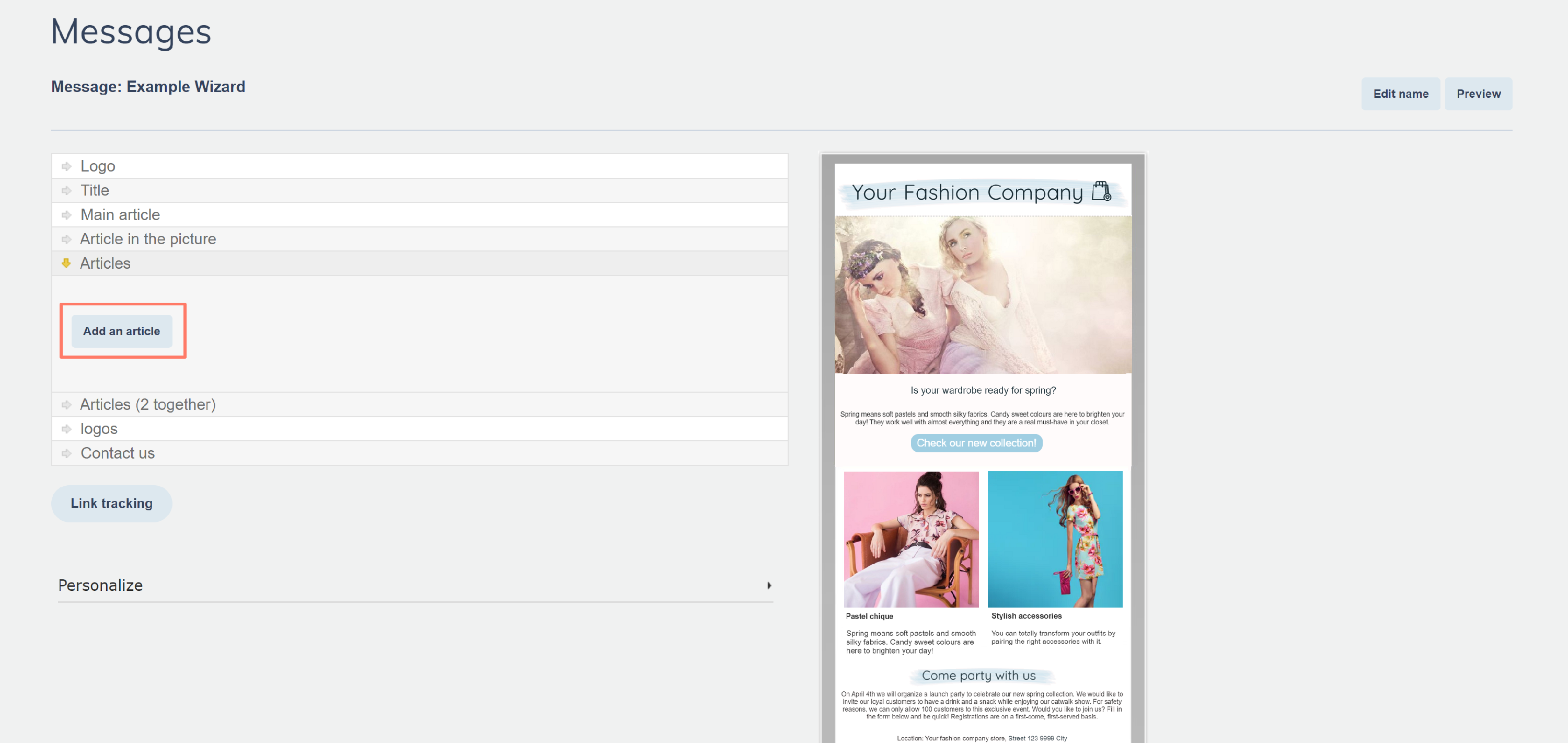
-
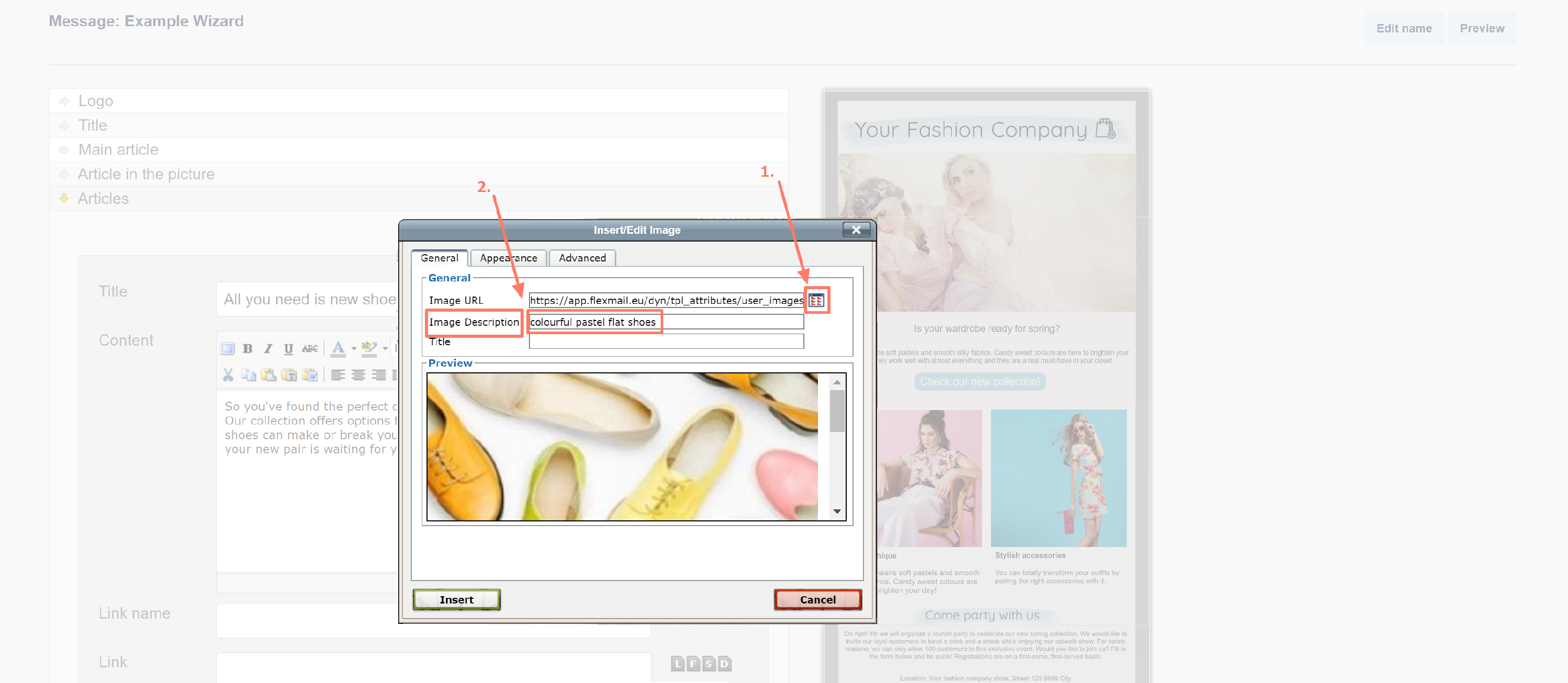
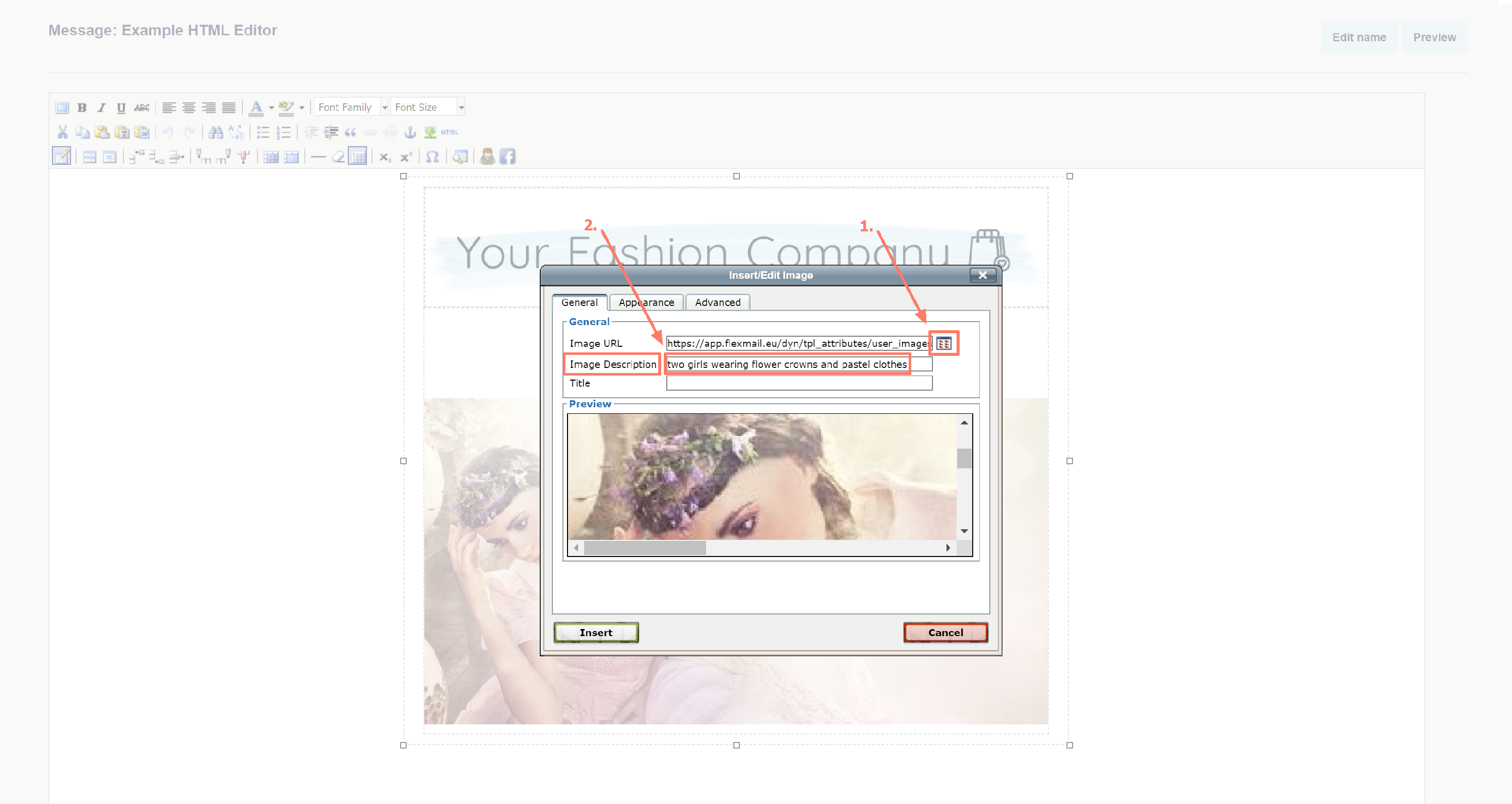
Click Insert/Edit Image
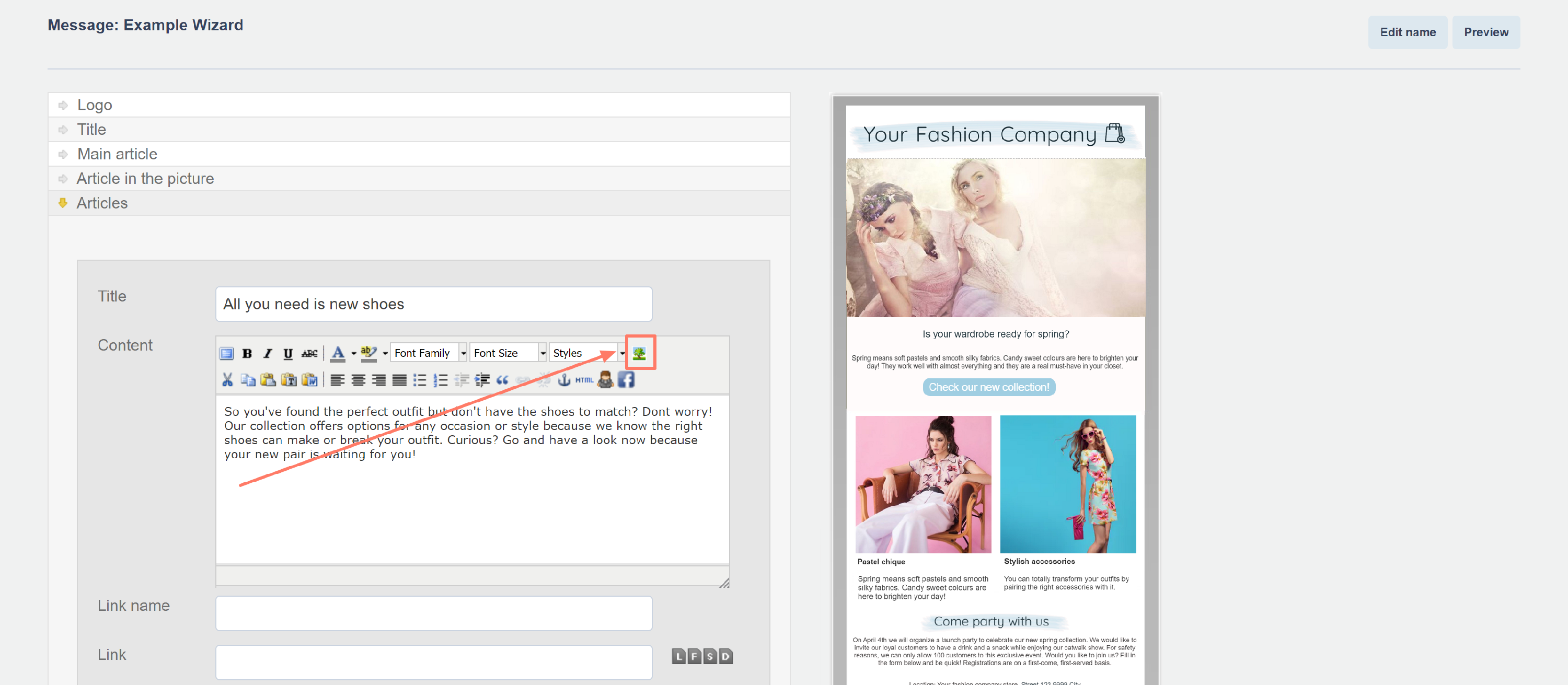
- Select your image via Browse → fill in the Image Description as alt text → click Insert.
HTML editor
-
Click Insert/Edit Image
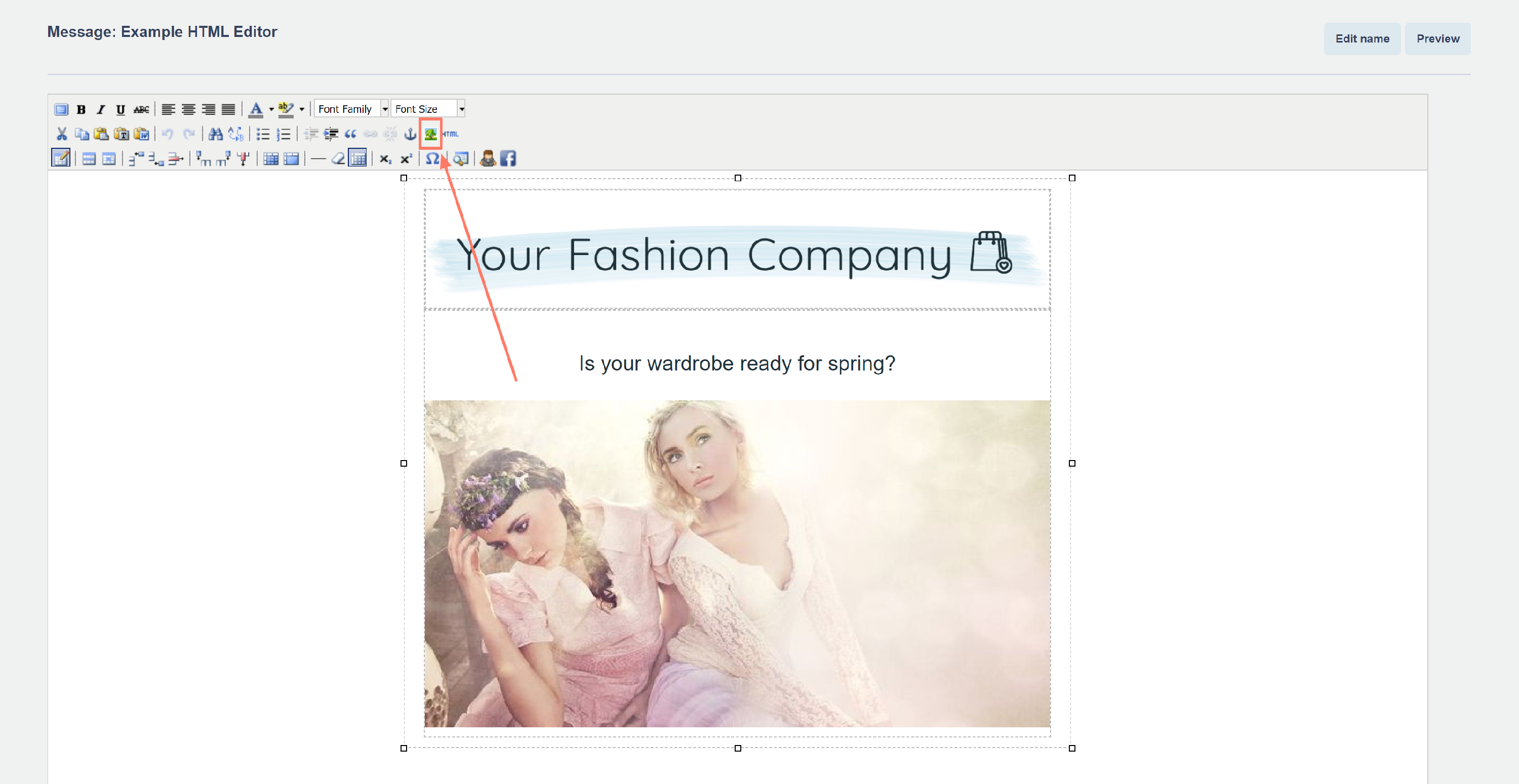
- select your image via Browse → fill in the Image Description as alt text → click Insert.
Writing effective alt text
- Describe what the image shows, not what it represents. "Woman using a laptop at a desk" is more useful than "Productivity".
- Be specific for product images. "Blue leather wallet, front view" gives more information than "Product".
- For decorative images that add no informational value, leave the alt text empty rather than using filler text like "image" or "photo". An empty alt text tells screen readers to skip the image gracefully.
- For buttons and CTA images, use the same text as the button label, "Register now" or "Download the guide".
- Keep it concise. Most screen readers cut off alt text after around 125 characters.
Pro tips
- After creating a message, use Message Check to preview your email with images disabled. This shows exactly what a reader with image blocking sees and is a reliable test for whether your alt texts are doing their job.
- Your subject line, preheader, and alt texts together form the text layer of your email. Readers who never enable images should still be able to understand your message from these elements alone.
Common mistakes to avoid
- Generic alt text like "image" or "banner", this adds no value and can frustrate screen reader users.
- Repeating the surrounding text word for word. Alt text should complement the context, not duplicate it.
- Missing alt text on CTA images. If your call to action is an image with no alt text, contacts using screen readers or image-blocking clients have no idea what to click.
Next steps
- See "Add an image" for how to insert images into your message.
- See "Message Check" for how to preview your email with images disabled.