
Dynamic content in the Email builder
Dynamic content lets you show or hide specific content structures in your email based on audience segments. One send, but each contact sees what is relevant to them. You set visibility rules on individual structures directly in the Email builder — no coding required.
Dynamic content in the Email builder is available on Pro and Premium subscriptions.
Before you start
Make sure you have the following in place:
- You have segments set up in your Flexmail account that you want to use as conditions.
- You are working in the Email builder. The Wizard editor does not support structure-level dynamic content.
Making a structure dynamic
Dynamic content rules are applied at the structure level. Each structure in your email can have its own visibility setting, independent of the others.
- Click the structure you want to make dynamic. The settings panel opens on the right.
-
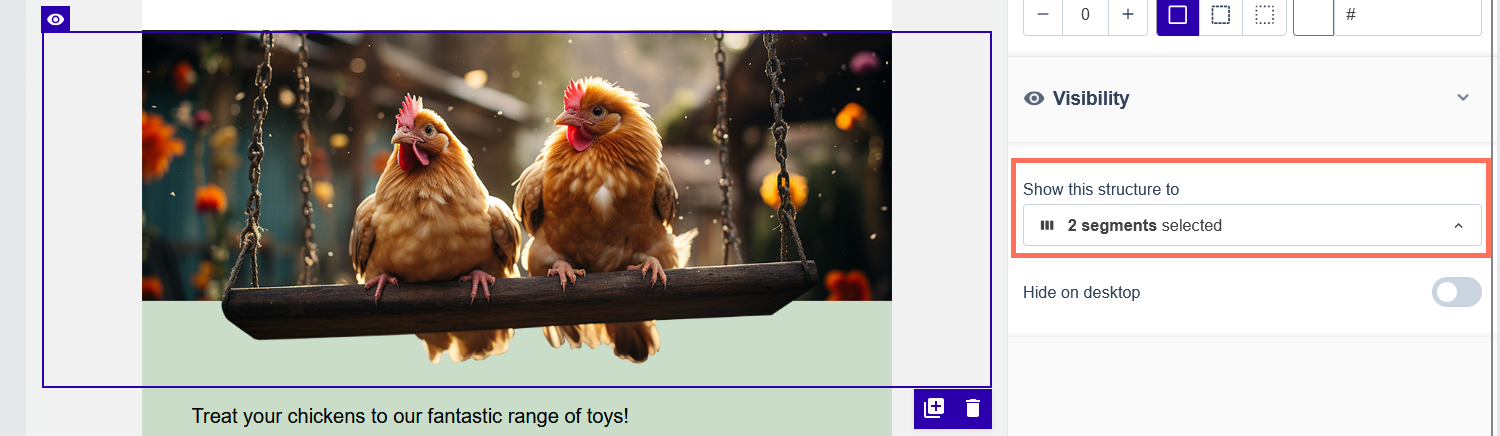
In the settings panel, scroll to the Visibility section.
-
Under "Show this structure to", open the dropdown and search for the segments you want.
You can select up to 5 segments per structure. Contacts in any of the selected segments will see this structure; contacts outside all selected segments will not.
- Save your message. Dynamic content settings are saved with the message.
Attention Dynamic content settings apply to both the desktop and mobile version of your message.
Recognizing dynamic structures
Any structure that has a dynamic content rule applied shows a small eye icon in its top-left corner. This makes it easy to scan your email and see which structures have visibility conditions set.

Removing dynamic content from a structure
- Click the structure whose dynamic content rule you want to remove.
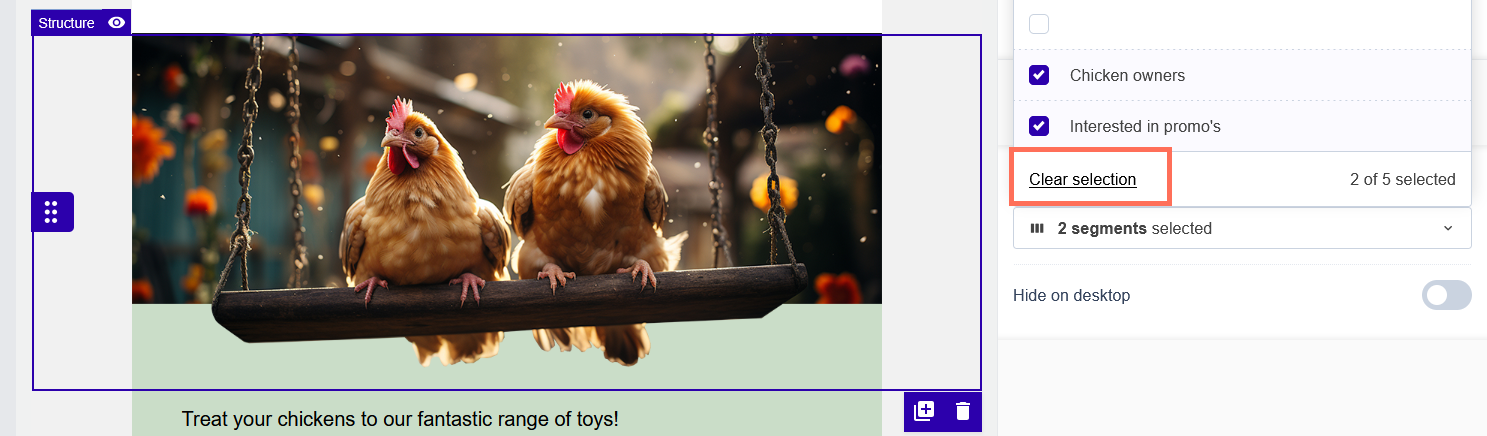
- In the Visibility section of the settings panel, open the "Show this structure to" dropdown.
-
Click "Clear selection" at the bottom of the dropdown. This removes the visibility rule and makes the structure visible to all contacts again.
- Save your message.
Previewing dynamic content
When your message contains dynamic content, a segment dropdown appears in the preview. Use it to switch between segment views and check that each audience sees the right content.
You can also send a test email with a specific segment view applied. This lets you verify the actual email rendering for a given audience before sending.

Things to keep in mind
- Maximum 5 segments per structure. If you need to target more than 5 segments with the same content block, consider duplicating the structure and applying additional segment rules to the copy.
- When you duplicate a structure, the copy inherits the same dynamic content configuration as the original.
- When you save a message as a template, the dynamic content configuration of all structures is preserved in that template.
- Dynamic content rules have no effect on reporting. Click data is tracked for every link in your email, regardless of which segments saw the content block containing it.
Other ways to use dynamic content
Structure-level dynamic content covers most use cases. For more advanced scenarios, Flexmail offers two additional approaches:
- If-structures — for conditional text within a paragraph, variable product names, or conditional links. Works in all three editors. See "Set up dynamic content with if-structures" for the full reference.
- External XML database — for highly automated use cases where email content is generated from a live product database. See "Dynamic content templates with an external database" for details.
Support tip Start with structure-level dynamic content before exploring if-structures. It covers the majority of use cases and requires no coding knowledge
Next steps
- See "Set up dynamic content with if-structures" for advanced conditional logic in email text.
- See "Personalise a message with placeholders" for inserting contact data into text.
- See "Get started with interests" to understand how interests can drive dynamic content conditions.