
Contact fields
Contact fields are how Flexmail stores information about your contacts. Every field has a name, a type, and a placeholder. The placeholder is what you use in subject lines, messages, and workflows to insert a contact's specific data, for example #firstname# to greet someone by name.
Choosing the right field types from the start makes your database easier to work with and your segmentation and personalisation more powerful.
Default fields
Every Flexmail account comes with five default fields that are always available:
- Email address, the unique identifier, and the only required field.
- First name, placeholder: #firstname#
- Name, placeholder: #name#
- Language, placeholder: #language#
- Source, where the contact came from.
These fields are automatically translated into all your selected communication languages, so contacts always see field labels in their own language on their profile page.
Custom fields
If the default fields are not enough for your needs, you can create custom fields to store additional contact data. On Essential subscriptions, you can create up to 25 custom fields. Pro subscriptions can add up to 50 custom fields, and Premium up to 100
When you create a custom field, you choose a name and a field type. The placeholder is generated automatically from the field name, lowercased, limited to alphanumeric characters and underscores, capped at 50 characters.
Field types
Free text
The most flexible type. Accepts any value, names, codes, notes, descriptions. Use this when your data doesn't fit into the other types.
Numeric
Stores a number. Use for data you want to compare or calculate against in segments, for example, total orders, account tier, or loyalty points. Supports segment conditions like "is greater than" and "is less than".
Date
Stores a date value. Use for birthdays, contract start dates, renewal dates, and event attendance dates. Date fields support segment conditions like "is before today", "equals today", and "is X days from now", essential for time-based workflows and automated reminders.
Multiple choice
A fixed set of predefined options, for example, a "Contact type" field with options Customer, Prospect, and Partner. Gives you clean, consistent data that's easy to segment and export.
Translations
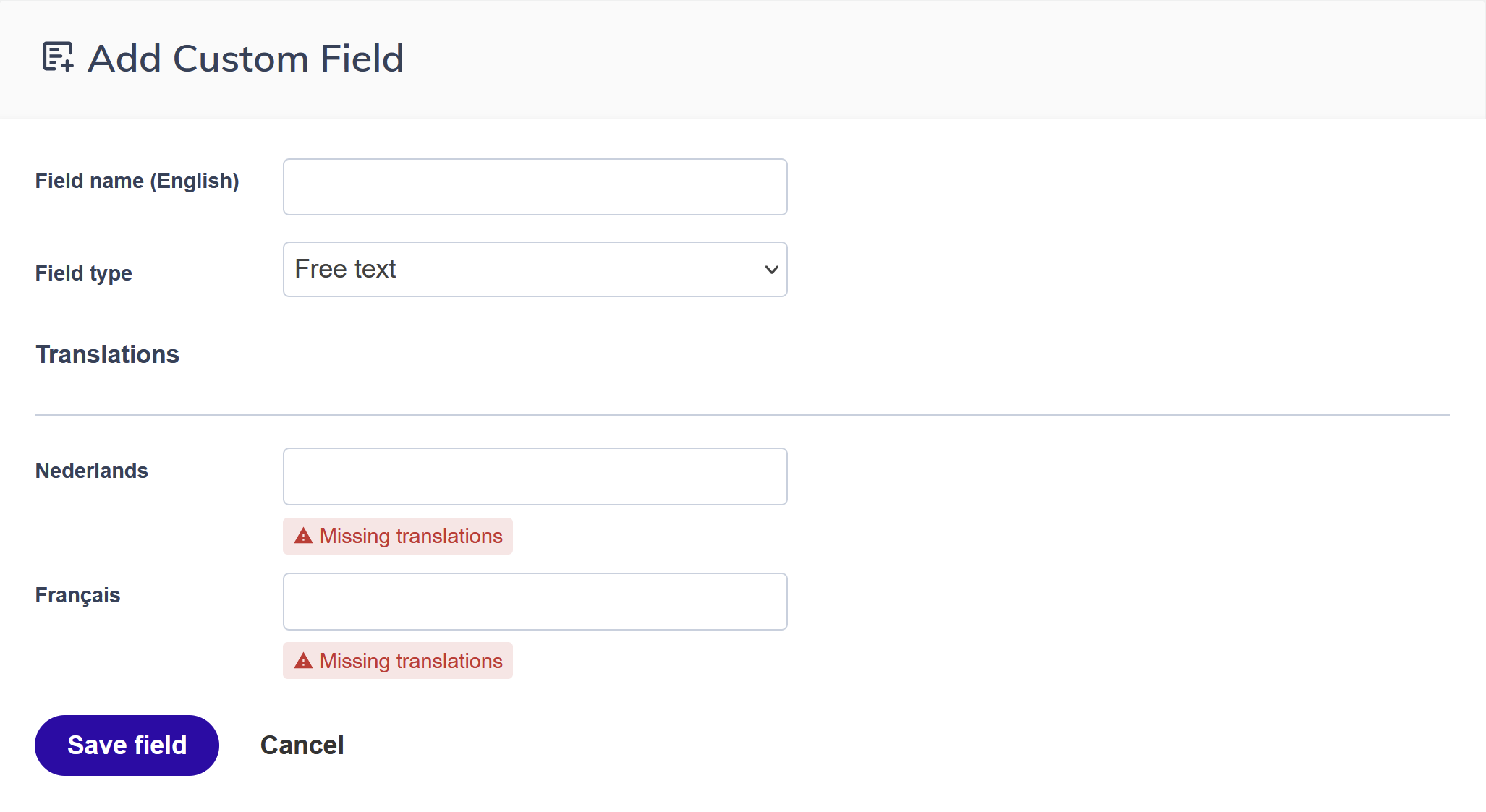
If you send in multiple languages, you can translate your custom field names so contacts see them in their own language on your opt-in forms. Default fields are translated automatically. Custom fields need to be translated by you, either during creation or afterwards. It is not mandatory, but strongly recommended. If a field is not translated, the fallback language version is shown instead.
Using fields in your emails
Every field has a placeholder you can use directly in subject lines, message content, and automation workflows. For example: Hi #firstname#, or Your renewal date is #renewaldate#. The placeholder is shown on the field detail page in your account.
Support tip You can segment on any contact field, default or custom. If you store a subscription plan in a custom field, you can create a segment for each plan level and target them with relevant content. Custom fields multiply your segmentation possibilities significantly.
Create a custom field
Create your custom fields before you import contacts. Fields you create after an import cannot be retroactively populated from that import.
- Go to Settings, then Manage custom fields.
- Click Create new field.
- Choose a field type: free text, numeric, date, or multiple choice.
- Enter a field name. This is what you and your contacts see in the interface. Up to 50 characters, all characters allowed.
- The placeholder is generated automatically. You can edit it if needed, it must be lowercase, alphanumeric and underscores only, maximum 50 characters.
- For multiple choice fields: add your options. Each option has a name (visible to contacts) and a value (used in exports and segmentation). You can set default pre-selected options and reorder them.
- If you send in multiple languages, add translations for each language.
- Click Save.
After creating a field
Your new field is immediately available for use in imports, segmentation, personalisation placeholders in messages and subject lines, opt-in forms and survey fields, and workflow conditions and actions.
Edit or delete a custom field
You can rename a field or update its options at any time from Settings, then Manage custom fields.
Deleting a field permanently removes it and all its stored values from every contact in your account. This cannot be undone.
Attention Deleting a custom field deletes all data stored in it across all contacts. Export a backup of your contact data before deleting any field you are not 100% sure about.
Pro tips
- Create all fields you anticipate needing before your first import. Retroactively populating fields requires a re-import or a manual update.
- Use the multiple choice type instead of free text whenever your data has a known, finite set of values. Free text fields accumulate variants ("Belgium", "BE", "Belgique") that are hard to segment on cleanly.
- Add field translations even if you currently send in only one language. Untranslated fields show the fallback name to contacts, which may not be meaningful in their language.
Common mistakes to avoid
Choosing the wrong field type
Storing a date value in a free text field means you cannot use date-based segmentation or trigger date-based workflows. A birthday in a free text field will accumulate different formats that are impossible to segment on cleanly. Choose the correct type when you create the field, because changing it later requires re-importing your data.
Creating the field after importing
If you import a CSV file before creating the custom fields you need, those columns will have nothing to map to and the data is lost. You will need to re-import to populate the fields. Always create your custom fields first.
Setting a placeholder that conflicts with an existing one
Placeholders must be unique across all your fields. If the auto-generated placeholder for a new field already exists, Flexmail will flag it. Edit the placeholder to something distinct before saving.
Creating too many fields
It is tempting to create a field for every piece of information you might collect. Sparse fields clutter your contact records and make imports more complex. Only create fields for data you have a clear plan to use.
Forgetting translations
If you send in multiple languages and leave custom field names untranslated, contacts see the fallback language version on your opt-in forms, which may be in a language they do not understand. Add translations when you create the field.
Deleting a field without a backup
Deleting a custom field permanently removes all data stored in it across every contact in your account. There is no undo. Export your contact list before deleting any field you are not completely sure about.
Using inconsistent values in free text fields
Free text fields populated via import accumulate variants: 'Belgium', 'BE', 'Belgique'. Each is treated as a separate value in segmentation. Use the multiple choice type whenever your data has a known, finite set of values.
GDPR considerations
GDPR Custom fields that store personal data, location, date of birth, purchase history, are subject to GDPR. Only collect data you have a legitimate reason to process and that contacts have consented to share. Make sure your privacy policy reflects what data you collect and why.
Next steps
- See "Add contacts" to import contacts and map them to your new fields.
- See "Link database fields with the import file" for how the field mapping step works during import.
- See "Interests vs. contact fields: when to use which" if you're unsure whether to use a field or an interest for a specific piece of data.