
Configure your branding in Wizard templates
You can set default brand colours and a banner image for all Wizard template messages in your account. These settings are applied whenever you create a new Wizard message, but you can always adjust them for a specific message inside the editor.
Set up Wizard template defaults
-
Go to Settings, then Wizard templates.
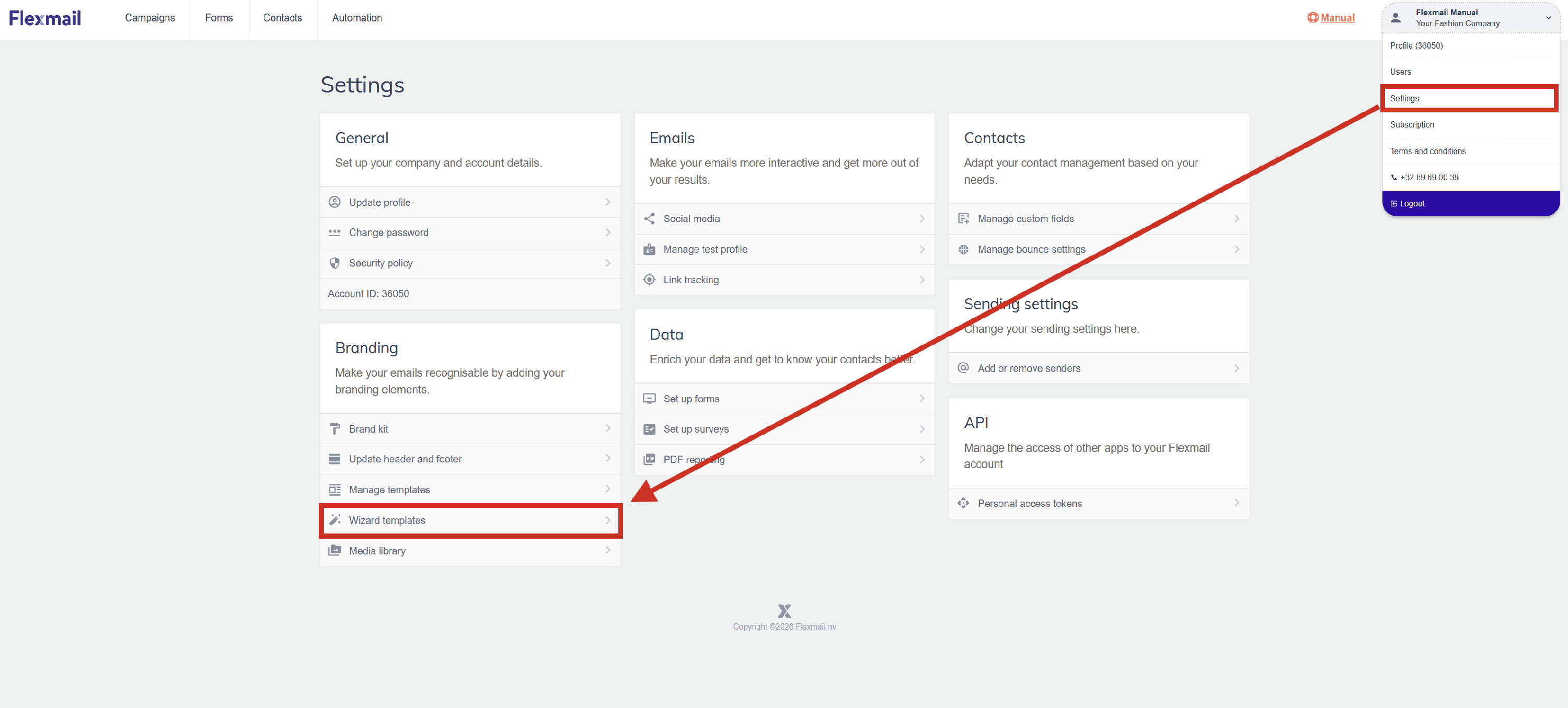
-
Click Browse to upload your banner image. The banner appears at the top of your Wizard messages. Recommended dimensions: 600px wide, 80-100px tall.
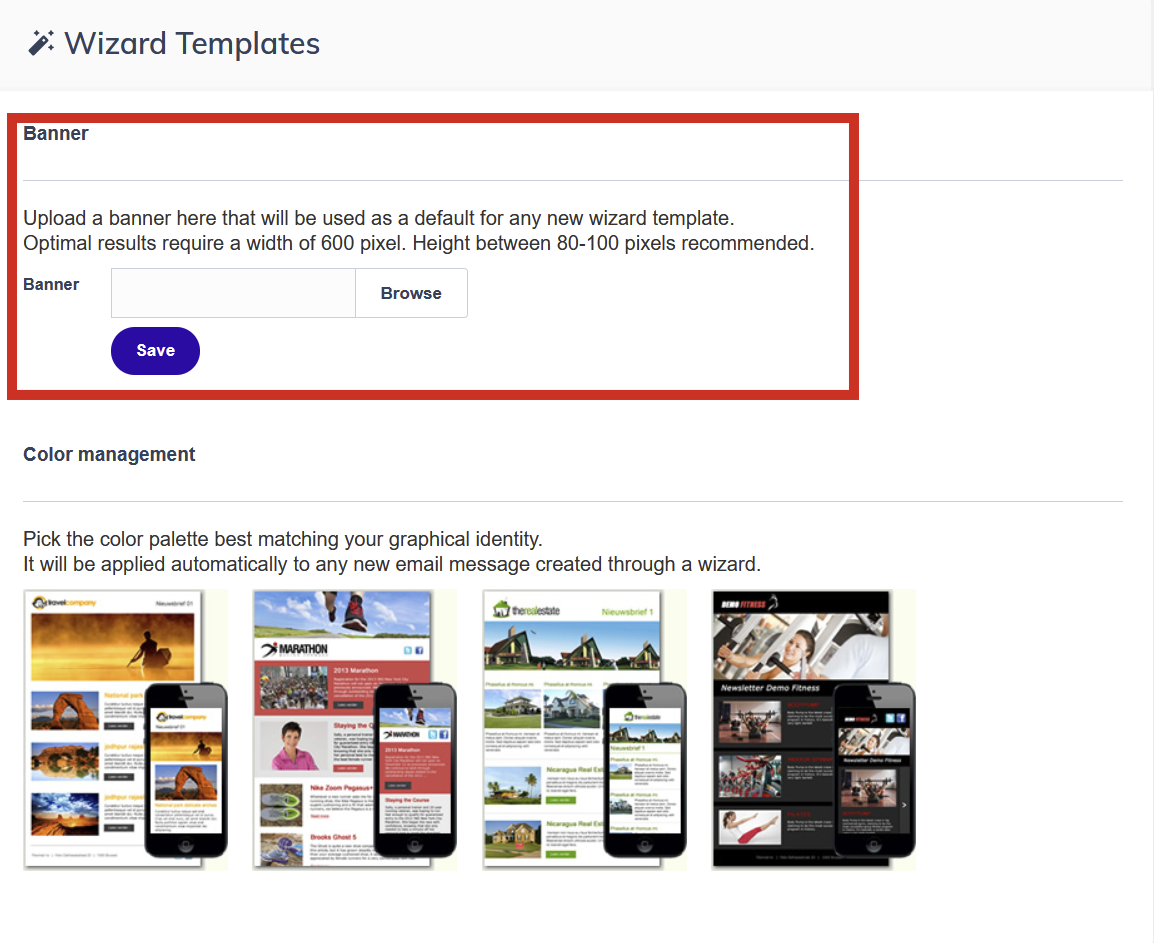
-
Set your brand colours, primary and accent colours that Wizard templates use for headings, dividers, and buttons.
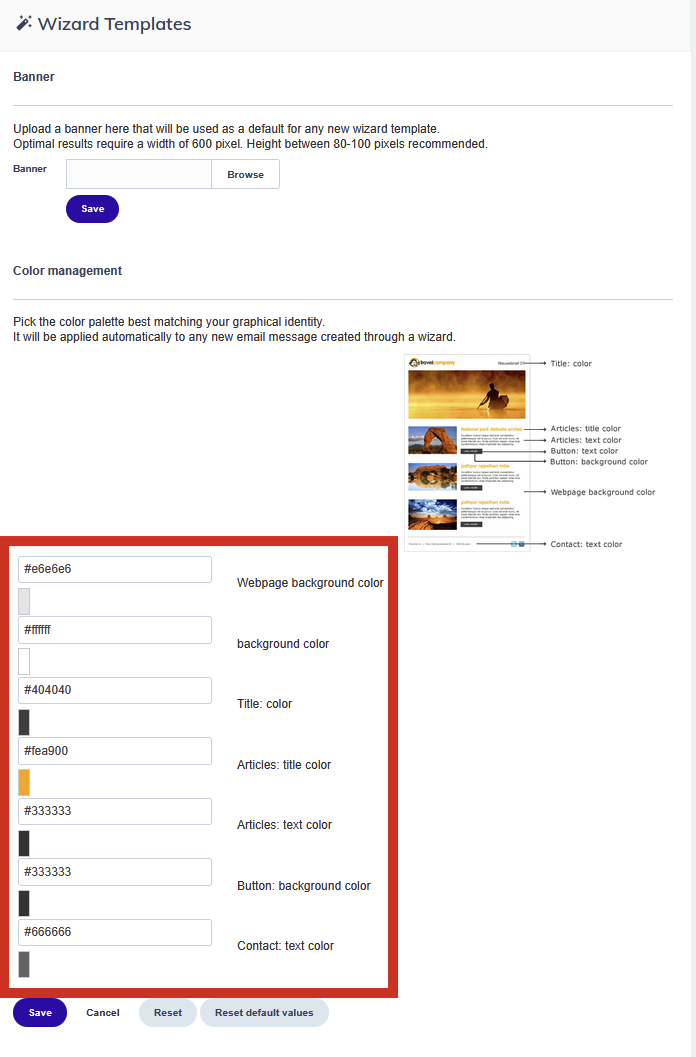
- Click Save.
Support tip Keep your Wizard template banner and colours consistent with your Email builder Brand kit settings. Contacts who receive both types of messages should have a consistent visual experience regardless of which editor you used to create them.
Next steps
- See 'Get started with the Wizard template' to create a Wizard message.
- See 'Brand kit' in Settings to configure your logo, colours, and Email builder defaults.