
Get started with the Wizard template
The Wizard Template is one of three message editors in Flexmail. It gives you a selection of pre-designed, mobile-responsive templates that you customise by adding your own text, images, and links, without having to make layout decisions. It is the fastest way to create a professional-looking email when you do not need custom design control.
What the Wizard Template offers
- Ready-to-use, mobile-responsive templates.
- Simple text, image, and link editing directly in the template.
- Colour theme customisation to change all accents at once.
- Link tracking.
- Personalisation placeholders.
- Seasonal templates available around Christmas and other occasions.
What the Wizard Template does not support
The Wizard Template does not support custom HTML, drag-and-drop layout changes, or showing and hiding sections based on contact data (dynamic content). Use the Email Builder or the HTML editor for those options.
When to use the Wizard Template
- You want a polished, consistent layout quickly with minimal setup.
- You do not need custom column configurations or dynamic content blocks.
- You are sending a simple newsletter, announcement, or promotional email that fits one of the available templates.
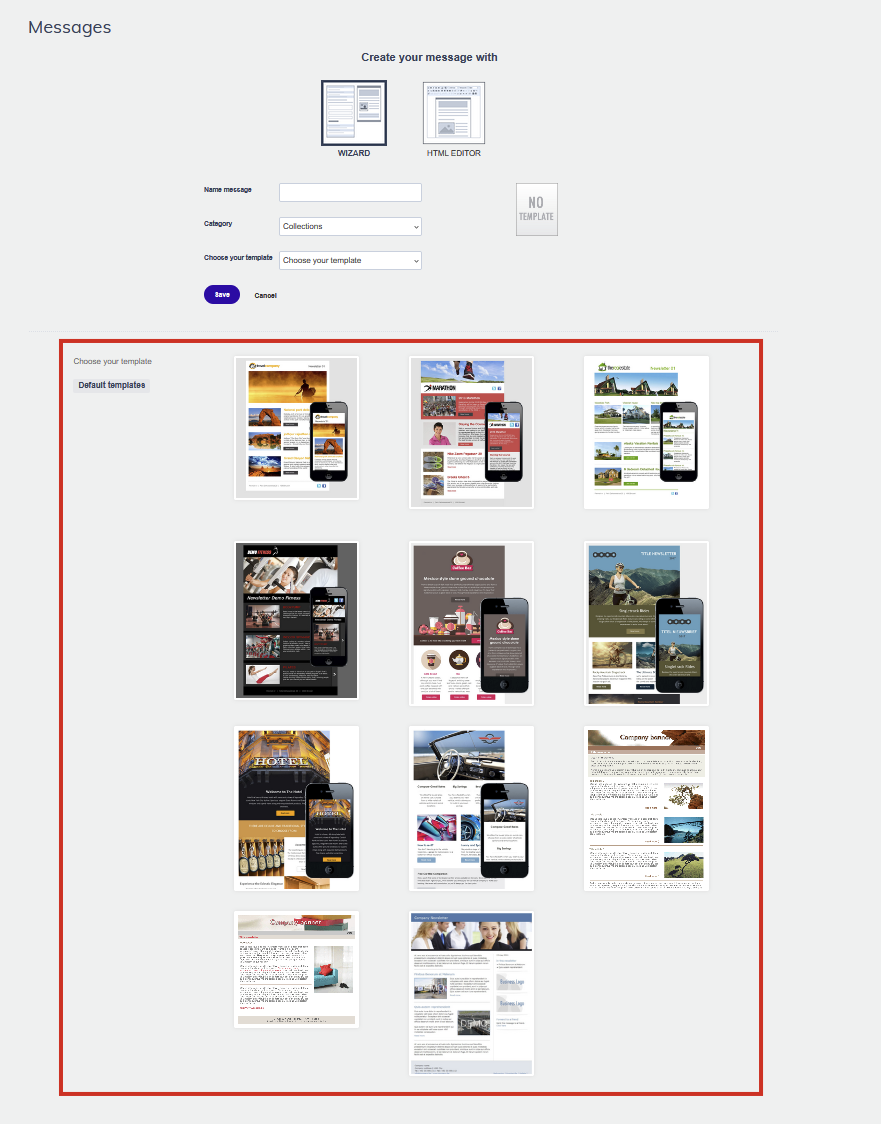
Available templates
- Mobile - 1 - Header (logo, title), hero/banner, articles (thumbnail, title, CTA), footer (name, address, social)
- Mobile - 2 - Hero/banner, logo, social media icons, featured articles (large thumbnail, title, CTA), secondary articles (small thumbnail, text CTA), footer (name, address)
- Mobile - 3 - Header (logo, title), hero/banner, 3-column features (thumbnail, title), articles (thumbnail, title, CTA), footer (name, address, social)
- Mobile - 4 - Header (logo), hero/banner, title, social media icons, articles (thumbnail, title, chevron CTA), footer (name, address)
- Mobile - 5 - Header (logo), main article (hero, title, CTA), banner, CTA section, 3-column features (thumbnail, title, CTA), calendar/activities, articles (thumbnail, title, CTA), footer (name, address, social)
- Mobile - 6 - Header (logo, title), main article (hero, CTA), 2-column articles (thumbnail, title, CTA), spotlight article (50% thumbnail, CTA), articles (thumbnail, title, CTA), 6-icon row, footer (name, address, email, website, social)
- Mobile - 7 - Main article (hero, title, CTA), CTA bars (before/after articles), spotlight article (50% thumbnail, CTA), 3×2 image grid, 2-column articles (thumbnail, title, CTA), footer (name, address, email, website, social)
- Mobile - 8 - Hero image, 3-column features (title, CTA), 2-column articles (thumbnail, title, CTA), 3-column articles (thumbnail, title, CTA), spotlight (33% thumbnail, CTA), 6-icon row, footer (name, address, email, website, social)
- Template - 2 - Header (hero/banner, date, title), introduction, articles (thumbnail, title, text CTA), closing text, footer (banner, name, address, email, website)
- Template - 3 - Header (banner, date, title), full-width article, footer (name, address, phone, fax, email, website)
- Template - 4 - Header (title, hero/banner), main area (introduction, articles with thumbnail/title/CTA, closing text), sidebar (date, table of contents, mini banners), footer (name, address, phone, fax, email, website)
Support tip If none of the available templates match your needs, contact sales@flexmail.be to have a custom Wizard template created for your brand.
Prerequisites
- You have access to Campaigns > Messages in your Flexmail account.
- Your content is ready, including text, images at the right dimensions for the template you use, and your call-to-action URL.
- Set up your test profile in Settings so personalisation placeholders show realistic data in the preview.
Create a new message
- Go to Campaigns, then Messages.
- Click Create new message.
- Click Wizard to select the Wizard editor.
- Give your message a name and select a category.
- Choose a template from the list. Click a template thumbnail to preview it before selecting it.
- Click Save to open the editor.
Edit your template
Edit text
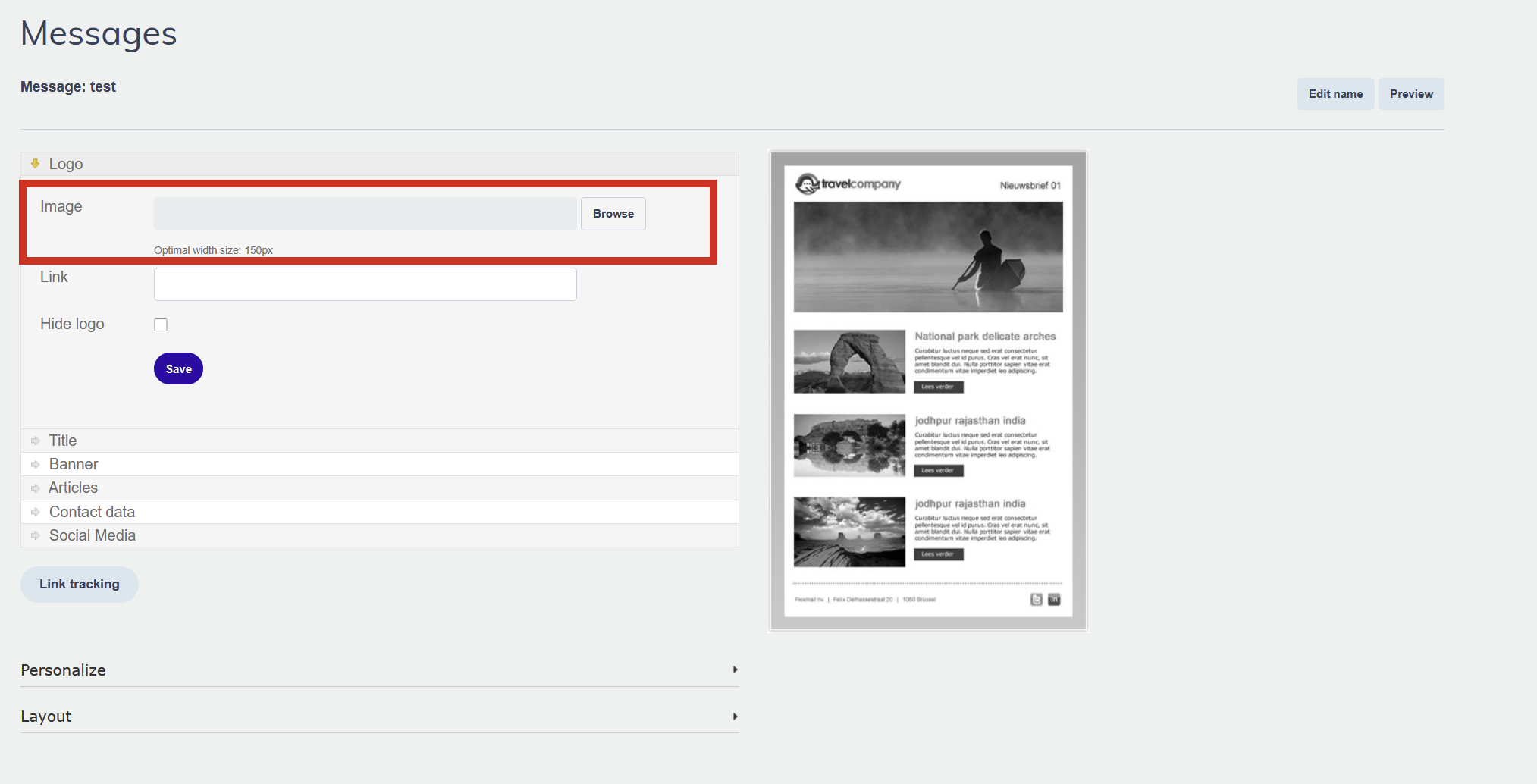
Click any text area to edit it directly. Use the text toolbar that appears to change the font, size, colour, and alignment.
Replace images
Click an image placeholder to upload a new image or select one from your media library. The placeholder shows the recommended dimensions. Use images at those dimensions to prevent stretching or cropping.
Add links
Highlight text and click the link icon to add a hyperlink, or click an image to link it. You can link to external URLs, landing pages, forms, surveys, or files in your media library.
Adjust colour theme
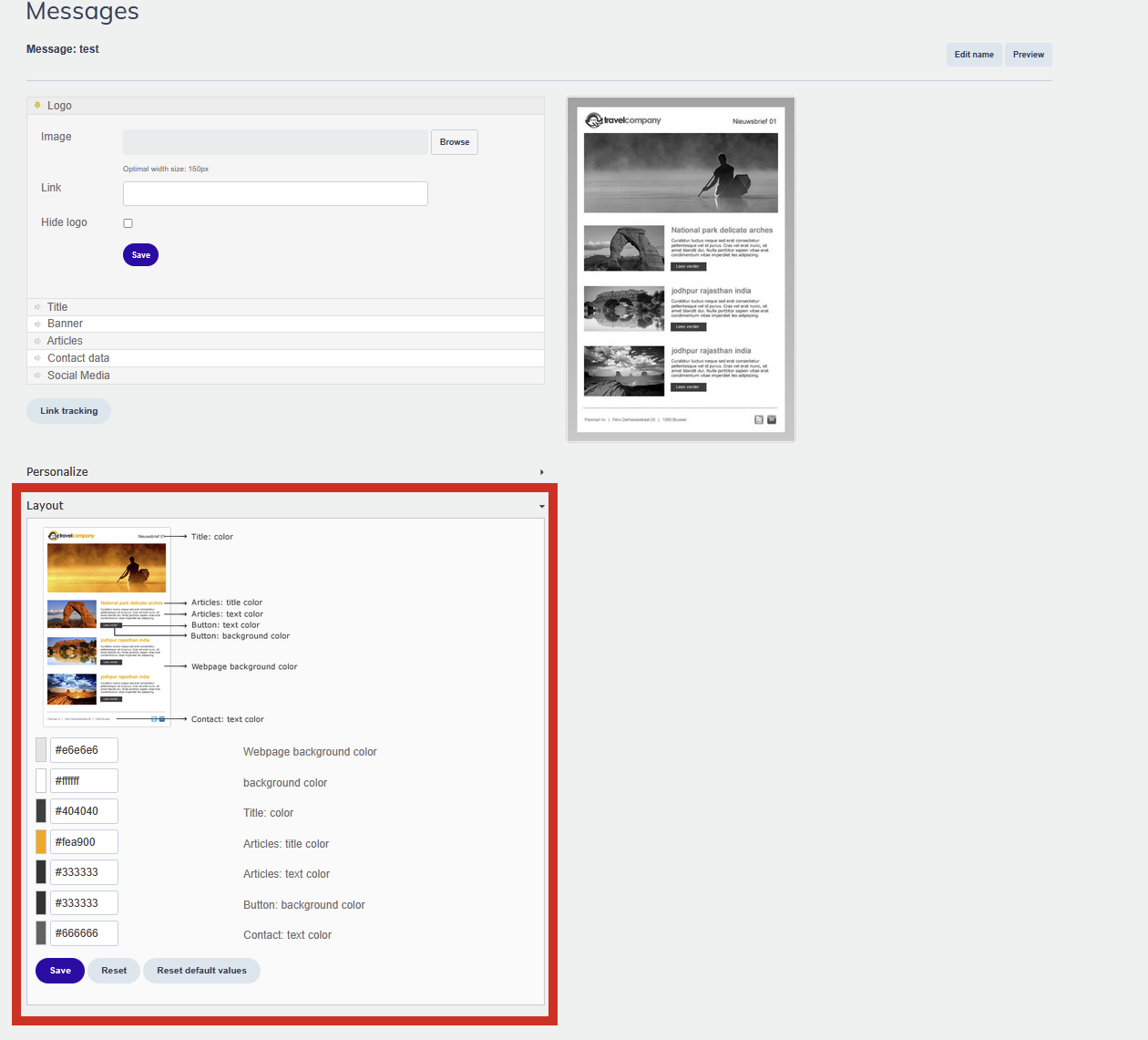
Use the colour settings at the top of the editor to change the template global colour theme. This updates all template accents, buttons, divider lines, and headers at the same time.
Add personalisation placeholders
Click the placeholder icon in the text toolbar to insert personalisation. Placeholders such as #firstname# are replaced with actual contact details when the email is sent.
Link tracking
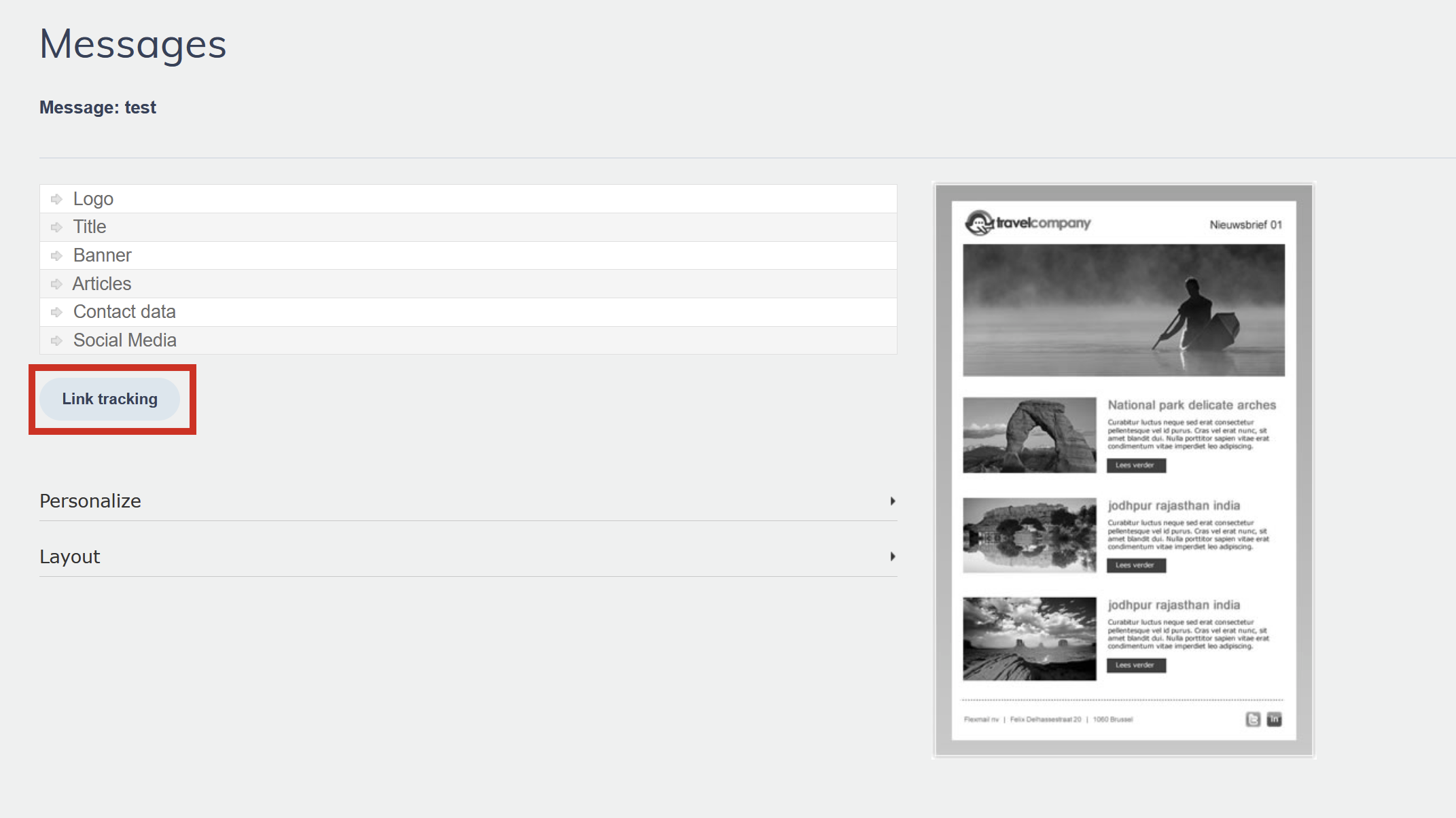
After finishing your message content, scroll down to the Link tracking section. All links in your message are listed here. Enable or disable tracking for each link and optionally assign an interest to each. See "Link tracking" for details.
Preview and save
Click Preview at the top of the editor to view your message with test profile data applied. Click Save when you are happy with the result. Your message is now available in your messages list for use in a campaign.
Support tip Fill in your test profile in Settings before previewing so personalisation placeholders display realistic details instead of empty fields.
Pro tips
- Use the mobile preview to check how the template looks on small screens before finalising it. All Wizard templates are responsive, but image dimensions and text length can still affect the mobile experience.
- Keep article text concise. Wizard templates have fixed section structures, so very long text can push other sections down unexpectedly.
Common mistakes to avoid
- Not checking the recommended image dimensions for each placeholder. Uploading an image with very different proportions results in stretching or cropping.
- Skipping the Link tracking section. Scroll down after editing your content to confirm tracking is configured for your most important links.
- Using the Wizard for emails that need dynamic content. The Wizard does not support conditional sections. Switch to the Email Builder for this purpose.
Next steps
- See "Types of Wizard Templates" for a visual overview of each template layout.
- See "Personalising a message with placeholders" for the full list of available personalisation placeholders.
- Create a campaign via Campaigns > Manage campaigns once your message is ready.