
Message Check
Message Check runs two analyses on your message before you send it: a layout preview across popular email clients and devices, and a spam score check. Running Message Check before every campaign is a reliable habit, it catches rendering and deliverability problems that aren't visible in the standard editor preview.
Open Message Check
You can start a Message Check from two places:
-
From the message list: click the gear icon next to a message and select Message Check.
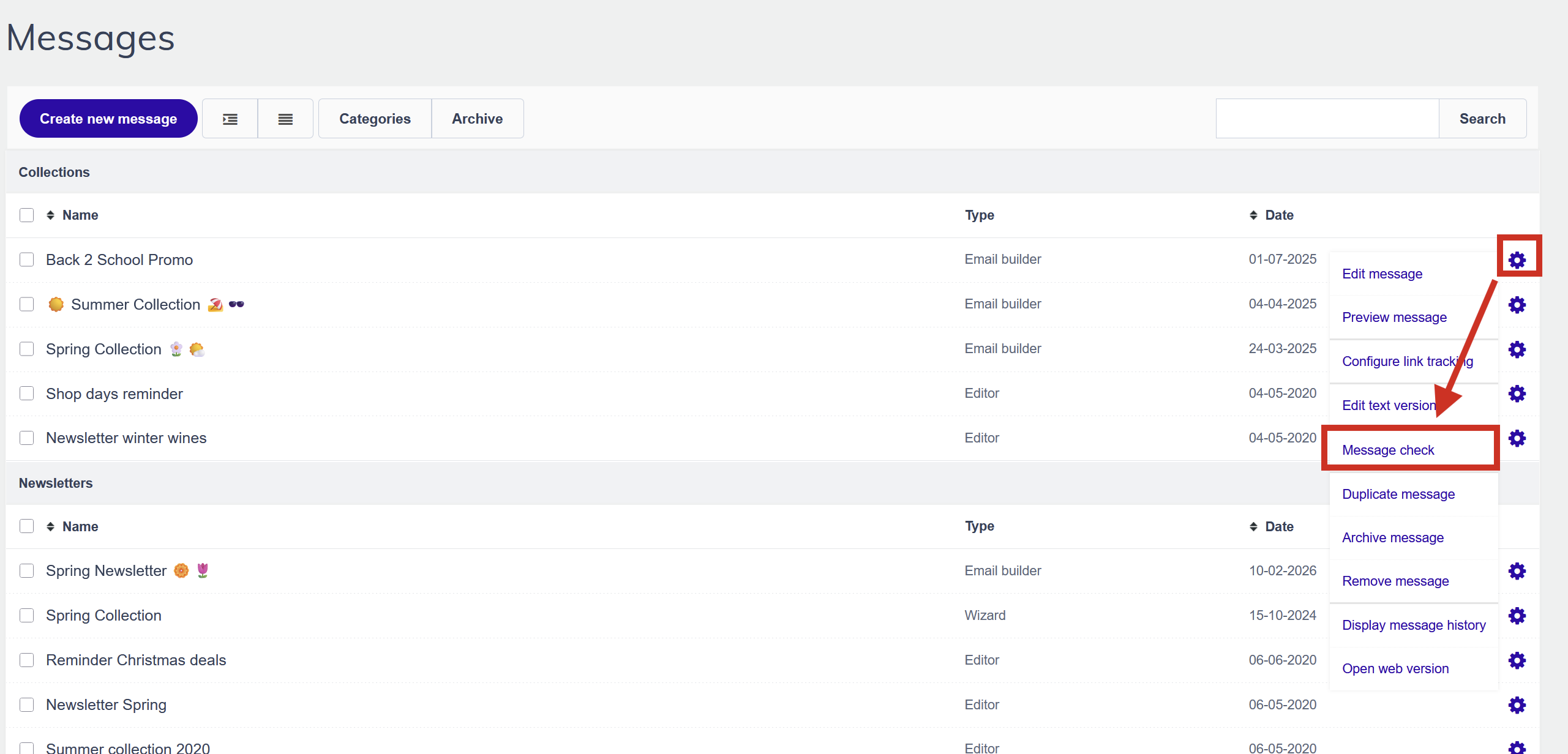
- From the message preview. This option is only available for wizard and editor message

Layout preview
The layout check shows thumbnail previews of your message as it would appear in a range of email clients, Gmail, Outlook, Apple Mail, and various mobile clients. Click any thumbnail to open a full-size preview.

At the top of each preview, you can toggle between a version with images loaded and a version with images blocked. This is an important check: many email clients block images by default, and your email needs to be readable in both states. Verify that your alt texts are descriptive enough to convey the message when images are hidden.

Support tip Check your campaign reports under the Email clients section to see which email clients your contacts actually use. Pay extra attention to those specific clients when reviewing your Message Check results.
Spam
- Scroll down to see whether your message passes the spam filters for the most popular email providers and web clients.
- If you see the tag Failed in red, you can read why your message failed the spam test and adjust your content.
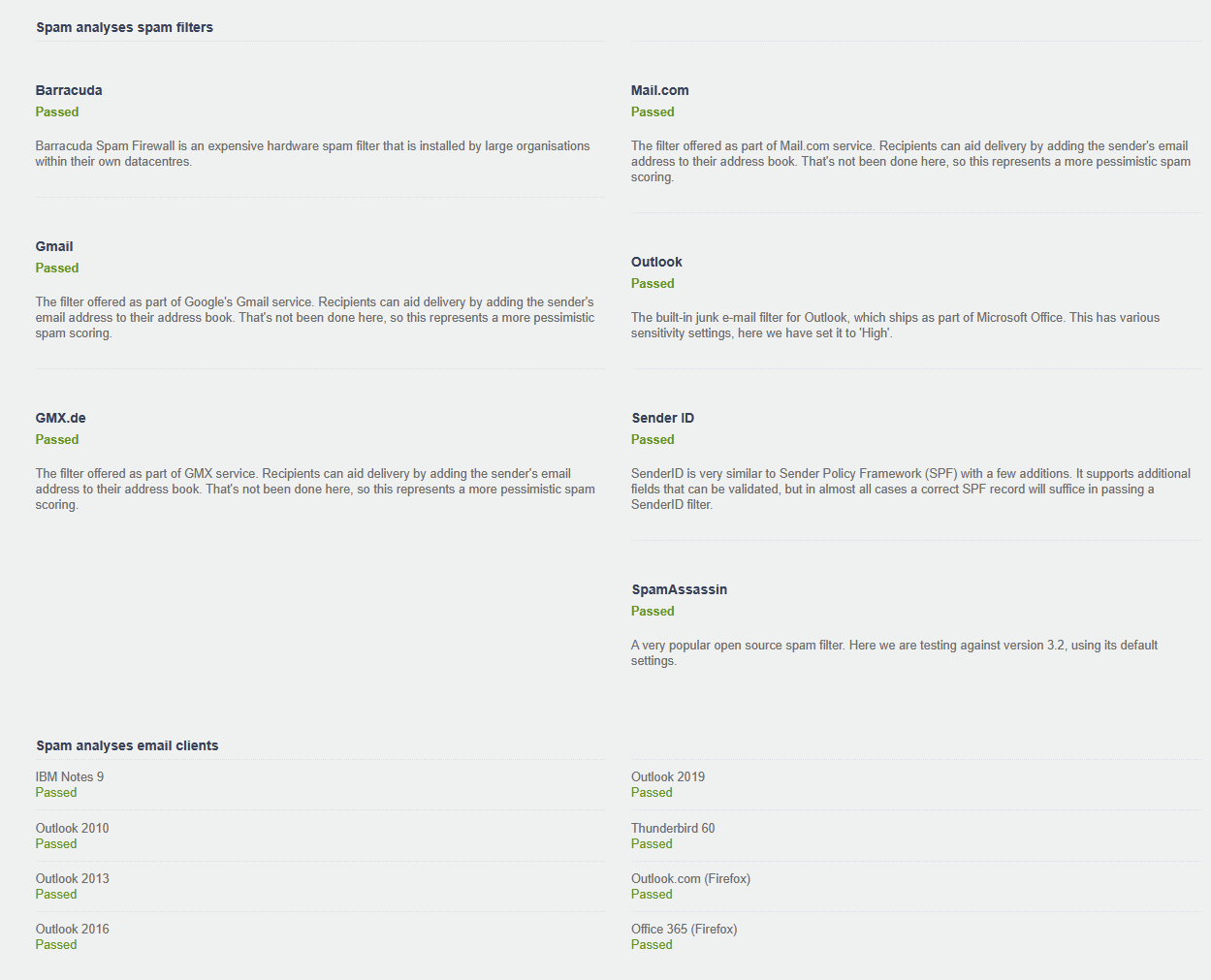
Attention: Passing these checks does not guarantee inbox delivery. Spam filtering at major providers like Gmail uses many signals beyond content analysis, including your sender reputation, engagement rates, and authentication setup. Message Check is a useful sanity check, not a delivery guarantee.
Pro tips
- Run Message Check after any significant change to your message content or layout, not just before the final send.
- Use the images-blocked preview to check that your alt texts communicate the message clearly. If the email makes no sense without images, your alt texts need work.
- If you have a persistently high spam score, review your subject line first, it's the most common source of spam trigger words.
Common mistakes to avoid
- Skipping Message Check entirely. The email builder preview shows what your message looks like in an idealised rendering environment, not in real email clients. Message Check reveals how it actually appears.
- Ignoring the images-blocked view. A significant proportion of contacts never enable images. If your message is incomprehensible without them, you're losing those readers.
- Treating passing checks as a guarantee of delivery. Passing these filters reduces risk but doesn't override poor sender reputation or authentication issues.
Next steps
- See "Alt texts" for guidance on writing descriptive alt text that makes your email readable when images are blocked.
- See "Why send a test campaign" for why sending a test to yourself is also important before going live.