
Get started with opt-in forms
An opt-in form is a subscription form that you place on your website to allow visitors to sign up for your email communications. When someone fills in the form, Flexmail automatically sends them a confirmation email. Once they click the link in that email, they are added to your account as a confirmed contact and are ready to receive campaigns.
Flexmail always uses double opt-in. There is no single opt-in option. This is a deliberate choice to protect both you and your contacts. See 'Why Flexmail only offers double opt-in' for the full explanation.
How the process works
- A visitor fills in your opt-in form on your website.
- Flexmail automatically adds them as an unconfirmed contact and sends a confirmation email.
- The contact has 72 hours to click the confirmation link. If they do not, the link expires and the contact must subscribe again.
- Once they click, they move from unconfirmed to confirmed status and can receive your campaigns.
What you can collect
At minimum, an opt-in form collects an email address. You can also add:
- Standard contact fields: first name, name, language
- Custom fields: any field you have created in your account
- Interest selections: let contacts indicate which topics they want to receive content about
- Consent for open tracking (optional checkbox): available once open tracking is enabled and the consent policy is active. Flexmail adds the checkbox automatically.
Support tip Keep your opt-in form as short as possible. Every additional field lowers the completion rate. Only an email address is usually enough to start with. You can collect more data later via forms and preference pages.
Where you can use opt-in forms
- Embedded on your website via the HTML embed code
- Embedded on a Flexmail landing page, whose link you can share on social media, in an email, or anywhere else
- In a Flexmail message as part of an opt-in campaign, to reconfirm consent from existing contacts
What happens to existing contacts
If a contact who is already in your database fills in your opt-in form again, their status is updated based on the confirmation. If they were previously unconfirmed or inactive, completing the double opt-in process brings them back to confirmed status. Any new field values or interest selections they submit are added to their existing contact record.
Create an opt-in form
Step 1: Name and language
-
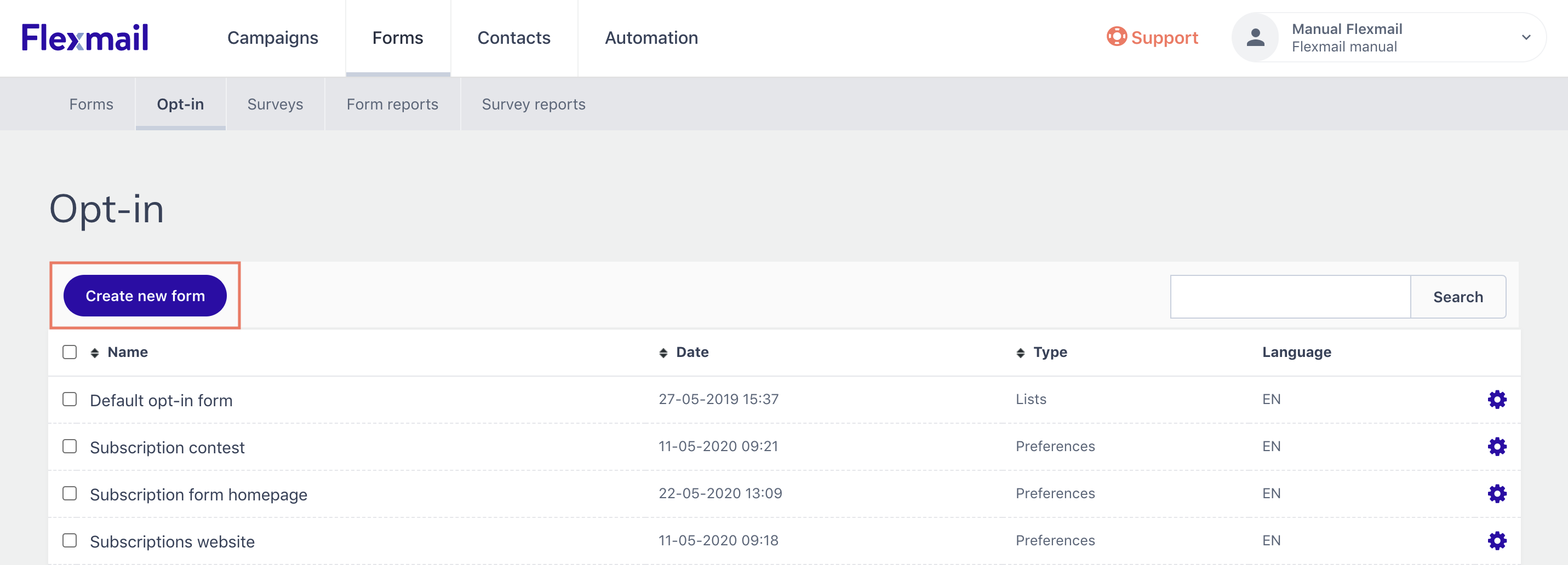
Go to Forms, then to Opt-in forms.

-
Click Create new form.
-
Enter an internal name for the form. Contacts do not see this name.
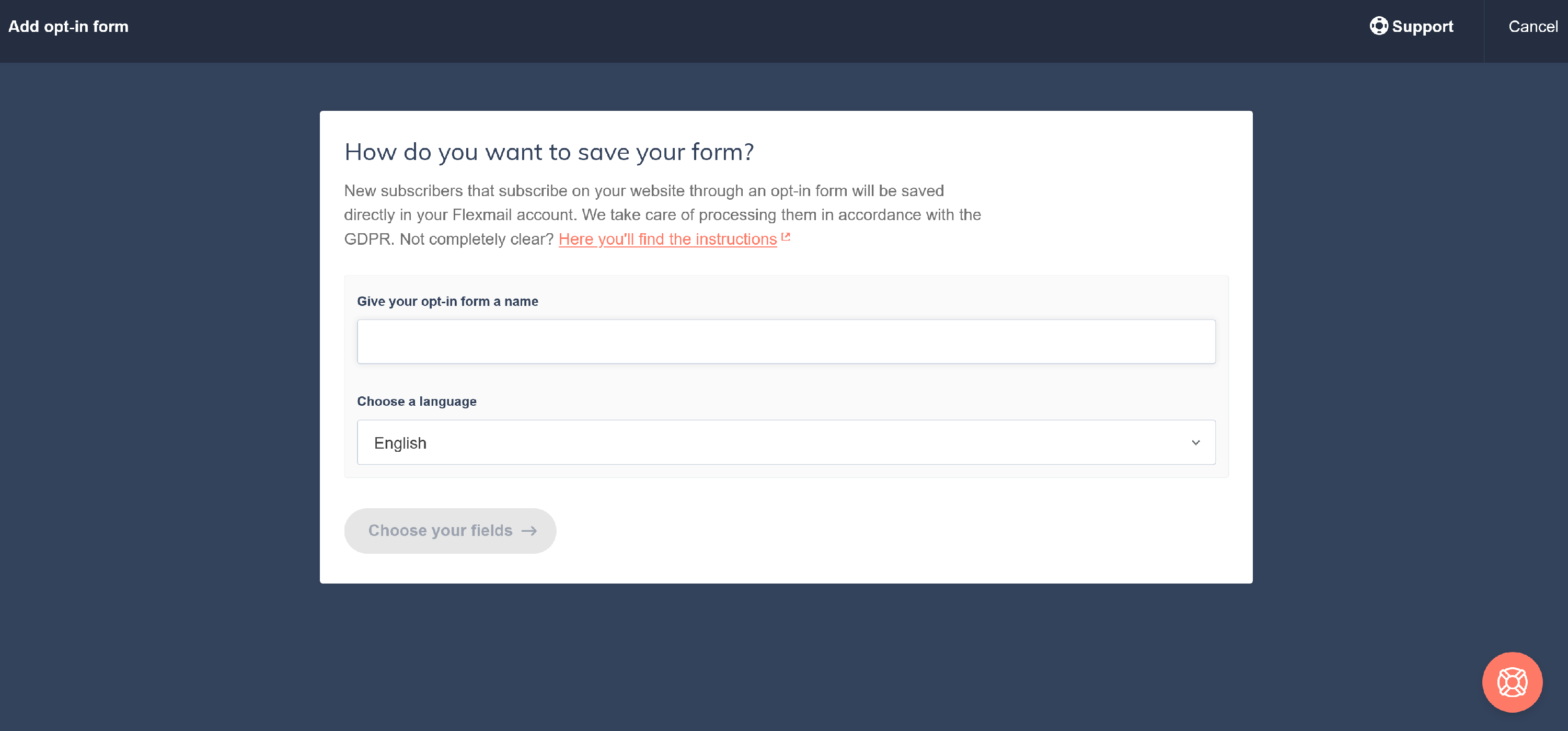
- Select a language. This determines the language of all buttons and default texts in the form.
- Click Choose fields.
Step 2: Choose your fields
- The email address is always included. Add any other fields you want: first name, name, custom fields, and interests.
- Drag fields to reorder them.
-
Mark fields as mandatory or optional.

- Click To form settings.

Step 3: Form settings
- Enter the sender name and email address for the confirmation email. This must be a validated sender address in your account.
- Optionally pre-assign up to five interests. Contacts are automatically subscribed to these after confirmation, but can adjust them on their profile page.
- Click Save form.

Get your embed code
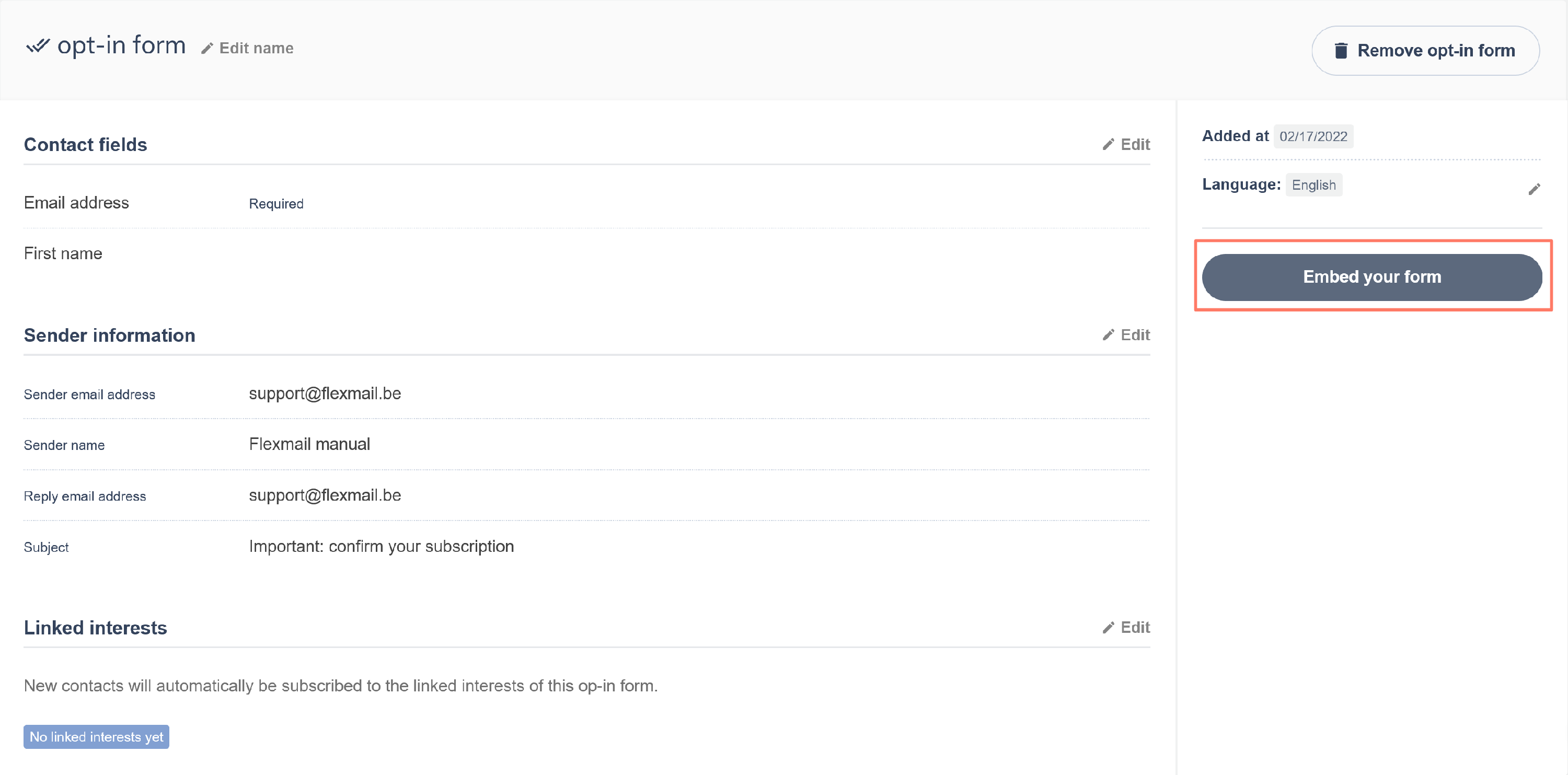
After saving, Flexmail generates an embed code that you can paste into your website HTML to display the form inline.

Support tip Test your form after embedding it. Go through a test subscription yourself to verify that the confirmation email arrives correctly and the contact appears in your account.
Use an opt-in form in a campaign
You can share an opt-in form in a Flexmail message as part of an opt-in campaign to reconfirm consent from existing contacts. Use the placeholder #opt-in#. This works in messages created with the Wizard or HTML editor.
Warning When you send an opt-in campaign, all recipients are immediately set to inactive. Only contacts who click the confirmation link become active again. Use opt-in campaigns deliberately, as they can significantly reduce your sendable contact count if response rates are low.
The confirmation email
Flexmail sends the confirmation email automatically. You can customise the sender name and email address that appear in the confirmation.
When a contact confirms, they are taken to their profile page where they can see the linked interests they are pre-subscribed to, and subscribe to other public interests from there.
The confirmation email uses Flexmail's default template. To make it more personal and engaging, see 'How engaging is your confirmation email?' in the Messages section.
GDPR considerations
GDPR
Opt-in forms with double confirmation are the most reliable way to collect GDPR-compliant consent. Each completed subscription generates a documented record: the contact's email address, the date and time of confirmation, and the opt-in form that was used. This documentation is automatically stored in Flexmail.
Consent for open tracking
If the open tracking consent policy is active, every form located in Flexmail contains a separate checkbox for open tracking. The text next to the checkbox is fixed and cannot be changed. It explains that an invisible image tracks the date and time of opening, and that the checkbox is optional. The checkbox is unticked by default.
If the visitor ticks it, their open tracking consent is set to "Yes". If they leave it unticked, it is set to "No", and they receive your emails without a tracking pixel. Because your forms use double opt-in, Flexmail records the choice at the moment the visitor confirms their subscription. Every change is logged with a timestamp and the source "Opt-in form" in the contact's consent log.
If you copy the HTML of a form to your own website, that is a snapshot of the form at the time of copying. The copy does not track later changes to the policy. Flexmail processes a subscription via such a copy in the same way: if the submission includes a choice for open tracking, Flexmail processes it. Otherwise, the value for an existing contact remains unchanged and a new contact receives "Not set".
Next steps
- See 'Why Flexmail only offers double opt-in' for the rationale behind double opt-in.
- See 'Tips for an effective opt-in form' for conversion optimisation advice.
- See 'How do I get the most out of opt-in forms?' for advanced use cases.