
Sharing messages with other Flexmail accounts
ave you built an email and would you like to share it with another Flexmail account? With Message sharing you can share emails that you have created in our Email builder with any other Flexmail account. Whether you're working with a client, a freelancer, a partner or a colleague in another team, you can now collaborate seamlessly without having to rebuild your template from scratch.
This feature is available for all accounts with access to the new Email builder and works through a simple sharing system with secure, temporary links.
In this article
Why sharing messages is so useful
You simply share your design, and the recipient gets the complete structure, images and formatting into their account in no time. They can then add their own texts, personal links and specific content, or save the message as a template for future campaigns.
Think of situations such as:
- A design agency sharing a campaign template with a client's Flexmail account
- A freelancer transferring a design to different clients
- Departments within a large company sharing branding assets with each other
- Brands sharing promotional templates with their distributors
What you need to get started
Before you start sharing messages you need the following:
- A message that you have created in the Email builder
- The recipient must also have access to a Flexmail account and must have sufficient rights to be able to create emails
- The email address or another way to send the sharing link to the recipient (for example via email, Slack or Teams)
Is your contact person not sure whether they have access to create messages? Go to Campaigns → Messages → Create new message. If you can see that, then you're all set to go.
Sharing a message: step by step
-
Open your message in the Email builder
Navigate to Campaigns → Messages and open the message you want to share. You can only share messages that you have created in the Email builder.
-
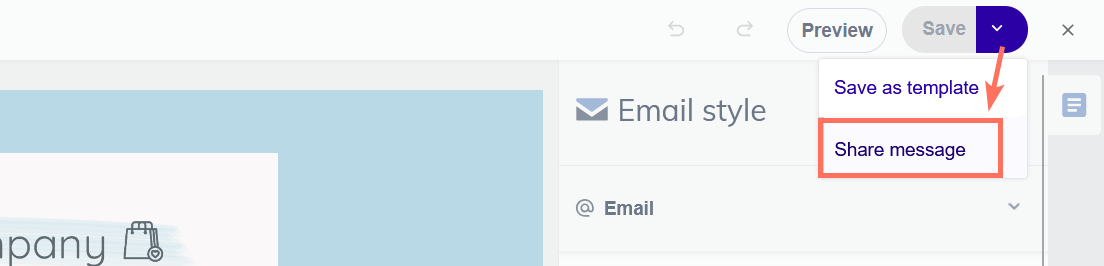
Click on the share button
In the top right of the Email builder you will find the "Share message" button under the "Save" button. Click on this to start the sharing process.
-
Generate a sharing link
Flexmail now creates a unique, secure link that remains valid for 7 days. This link is personal and can only be used by people with whom you share it.
Has your sharing link expired or has your contact person waited too long? Generate a new link after those 7 days, if necessary.
-
Copy and share the link
The link now appears on screen. Click on Copy link and send it via email, chat or whatever channel you use to communicate with your recipient.

An example message could look like this:
"Hey Sarah, I've created an email for our newsletter that you can use as a starting point. Here's the link: [your sharing link]. You can easily import it into your Flexmail account and customize it to your own needs. The images are included too. The link remains valid for 7 days. Please check personalization placeholders and links and adjust where necessary."
-
Done!
Your original message remains in your account, unchanged. The recipient gets a copy that they can customize without affecting your version.

Receiving and importing a shared message
Have you received a sharing link from a colleague or partner? Then you can import it into your account in a few simple steps.
-
Open the sharing link
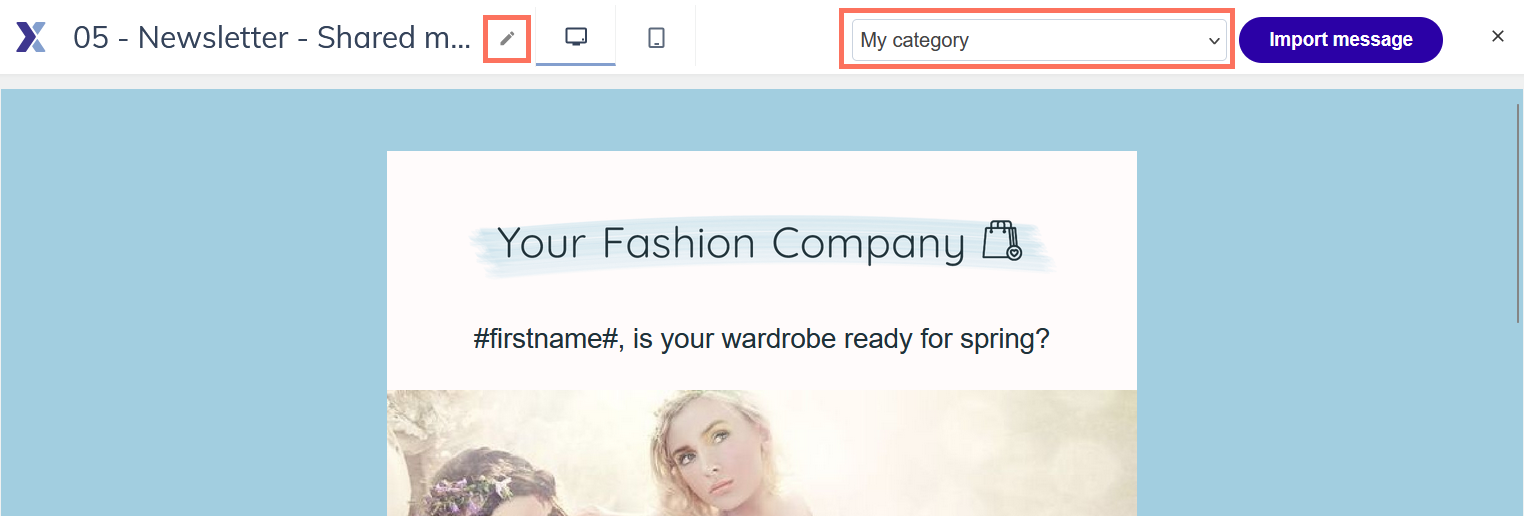
Click on the link you have received. You will automatically be taken to a preview page where you can view the message.
-
View the previewTake the time to review the message. Here you will see the complete formatting, structure and images.
-
Give your message a name and category
You will be asked to give the imported message a name. We suggest the original name of the message here. Choose something recognizable so you can easily find it later, for example "Newsletter template from Sarah - December 2025". You also choose in which category you want to save the message.
-
Import the message
Satisfied with what you see? Click on the button Import to my account. Flexmail now copies the complete design, including all images, to your account. The images are saved in your media library.
-
Personalize and make it your ownNow the fun work begins. The message is now in your account and you can completely customize it:
- Add your own texts and offers
- Adjust colors to your house style
- Replace placeholders with your own content
- Add personalization that is relevant to your contacts
- Update links to your own website or landing pages
Applied changes? Don't forget to save your message before closing the Email builder.
Pro tips and best practices
For sharers: maximize the usability of your message
Make your template generic enough
Avoid references that are too specific to your own particular situation in the formatting. A good shared template has a neutral base that others can easily adjust if that is the intention.
Use placeholders for variable content
Instead of "Take advantage of 20% discount!" you can better use "[Your offer here]". This way it is immediately clear to the recipient of the shared message what needs to be adjusted.
Think about images
The images you use are imported into the recipient's account. Make sure your images are of good quality and remain relevant, even without your specific context.
Avoid overly complex personalization
Keep your template relatively simple in terms of dynamic content. Don't forget: account-specific elements are removed anyway when sharing.
For recipients: make it your own
Always check all links
The links in the original message may not work for your situation. Review all buttons, texts and text links and update them to your own website, landing pages or products.
Test your personalization
Add your own personalization fields and test them thoroughly before sending the message to your entire target audience. Use the preview function to check whether everything is displayed correctly.
Adjust the sender
Don't forget to also check your footer and any address details and such.
Think about your target audience
The template that worked perfectly for another company may still need to be adjusted for your specific target audience. Adjust the tone of voice, imagery and offers where necessary.
For teams and partners: work together effectively
Make agreements about naming
If you often share templates within a team, agree on a clear naming convention. For example: "[Month] - [Type] - [Creator]" so that everyone can quickly see what is what. Also use your categories cleverly if applicable.
You can still move existing messages to another category by using the checkboxes on the overview and selecting "Change category" at the bottom of the page.
Also share your learnings
Sharing a template is great, but also share what you have learned. Which subject line worked well? Which call-to-action had the highest conversion? This context makes your template even more valuable. How did the shared message work for your target audience?
Use it for onboarding
New colleagues or clients can learn a lot from your best templates. Use message sharing as part of your onboarding process.
Common mistakes and how to avoid them
"The link no longer works"
Problem: You try to open a sharing link, but get an error message.
Solution: Sharing links are valid for 7 days. If the link has expired, ask the person who shared the message to create a new link. This only takes a few seconds.
"No dynamic content is set"
Problem: After importing you see that your dynamic content is gone.
Solution: This is not a bug, but actually a feature. The system automatically removes account-specific content to prevent compatibility problems. You get a clean base.
"I can't find the images in my account"
Problem: What happened to the images in this message? Where can I find them?
Solution: When we import the message we store all images in the root folder of your media library. If desired, you can move them to another location.
Imported images count towards your storage limit. If you regularly import templates with many large images, keep an eye on your available space via the Account dashboard or via Account → Settings → Media library.
"I can't share a message"
Problem: You don't see the share button.
Solution: Check whether your message was created in the Email builder. You can rebuild a message from other design tools in the builder and then share it.
"My client has no access"
Problem: You want to share a template, but the recipient cannot import it.
Solution: The recipient must have sufficient rights to be able to create a new message. They can contact the administrator of their account to adjust those rights.
Privacy and security
At Flexmail we take your privacy seriously, also when sharing messages.
Unique, temporary links
Each sharing link you create is unique and only valid for 7 days. This means that your template is not indefinitely accessible and you always maintain control over what you share.
Automatic content stripping
The system automatically removes account-specific elements such as internal links and dynamic content, which would not work in another account.
Your original remains untouched
Sharing a message creates a copy for the recipient. Your original message remains exactly as it is, and changes that the recipient makes have no impact on your version. By the way, you always share the version that existed at the moment your link is generated.
Responsibility with the recipient
When someone imports your template, they become fully responsible for the message in their account. They must ensure that the content, links and personalization are correct before sending it to their target audience.
Only share templates with people you trust. Although the links are temporary and secure, it is always wise to be conscious about with whom you share your designs.
Next steps
Now that you know how to share messages, here are some suggestions to make optimal use of it:
-
Start small and learn
Begin by sharing a simple email with a colleague or client. This way you get a feel for how it works before you start sharing more complex designs.
-
Save your message as a template
Have you created an email that performs fantastically? Then save it as a template in your account, so you can also use it as a basis for future campaigns yourself.
-
Explore the Email builder further
If you haven't fully explored the new builder yet, take the time to discover all the possibilities. From advanced layout options to dynamic content, there is much to discover.